# Hierarchy

{% hint style="info" %}
**GAME MAKER 0.10 REVAMP**

A powerful new way to manage assets!

* Folder creation for better organization.
* Filters and sorting.
* New UI and code to be more user friendly, stable, and reliant.
* Lock object logic to avoid mistakes.
  {% endhint %}

## What is the Hierarchy?

Use the Hierarchy to find objects quickly and create parent and child relationships to manage objects as a group during build and play modes. You may also organize objects into folders and lock logic.

<figure><img src="/files/K7NkEhYN6ttL6LcNF5fq" alt=""><figcaption></figcaption></figure>

<img src="/files/5tGKdBo3WY6v7CkWvqbr" alt="" data-size="line"> The **Hierarchy** button opens a window listing all Objects in your Experience. There are different object types:

* ![](/files/XTt6Ta0oF04tZkYpTb81) **Voxel objects**
* ![](/files/yHMr4OEiyxGGOyBtA23B) **Logic assets**
* ![](/files/v22AJM4IjtcxmBVmZz8k) **Spawn points**

### Controls

#### Per Object:

* ![](/files/6u7XNMIzucLcRjUutmv0) **Focus** the camera on an object (you can also press the F key)
* ![](/files/TMLNn9cHYMyeM3xk7D0e)![](/files/66dwsnq2Puu5J022AHLf) Toggle the **visibility** of any object listed (affects Builder/Play Modes and child objects)
* ![](/files/gCDDqHwpAn4EW1A0eccF) **Lock** object properties so logic cannot be accidentally edited. When you attempt to edit a locked object, a tool tip will remind you to unlock it: ![](/files/mTukBF3nrHVIttCpFIrm)
* ![](/files/y99vq83jxezQvIpmYm0z) View at glance if an object has a behaviour and/or components applied

#### :mouse\_three\_button: Right Click Menu:

Right click an object or select multiple objects and right click to duplicate, delete, rename, move to a folder, lock logic, hide, or group (add to a new folder).

<div align="left"><figure><img src="/files/SswUmL8RgGY2jYzHZoTE" alt=""><figcaption></figcaption></figure></div>

* Logic Actors are invisible, so the **Hide** option is not listed
* Spawn points include an additional option to **Set as Active Spawner**

#### Panel:

* ![](/files/En2YaZklfaTXNb4LKHW7) **Create New Folder**
* ![](/files/6YVoK6CGM8LW4IbiY0G7) **Delete**
* ![](/files/wNvDQDRsMLsh7qmKxM3t)  **Logic Count (hover mouse)**

### Organise Objects

#### Move Order in Hierarchy

<div align="left"><figure><img src="/files/b4TRsXpsvePGyegS9KZx" alt="" width="359"><figcaption></figcaption></figure></div>

#### Group Objects in Folders

Select assets and right click to create a Group, which adds them to a New Folder. You may also select multiple assets and drag and drop them into a folder.&#x20;

A folder *acts like a* *parent object* so you can select it and move all objects grouped in a folder at the same time in the viewport.

<div align="left"><figure><img src="/files/TgybRDRPg2VxWtTQXhSS" alt="" width="359"><figcaption></figcaption></figure></div>

#### Manage Folders

Right click a folder to open a menu to duplicate, delete, rename, move to a folder, group (move inside a new folder if multiple folders are selected), and change the folder colour.&#x20;

Select a colour or click the X to remove the applied colour.

<div align="left"><figure><img src="/files/gAUXImIjl9HTfHhY1MBh" alt="" width="288"><figcaption><p>Right click a folder to apply colour</p></figcaption></figure></div>

#### Search

The search bar makes it easy to find objects within folders, by certain criteria such as tags applied, and sort to view details such as when objects were added.

<div align="left"><figure><img src="/files/7HN1sy6MACgZvjkp4DAB" alt="" width="289"><figcaption><p>Nested search results show parent folders</p></figcaption></figure> <figure><img src="/files/wfbD5UxrSTMzHOoZT48r" alt="" width="290"><figcaption><p>Filter options</p></figcaption></figure> <figure><img src="/files/09o7RhghVg76iknwE36B" alt="" width="292"><figcaption><p>Sort options</p></figcaption></figure></div>

***

## Parent Objects Control Child Objects' Properties

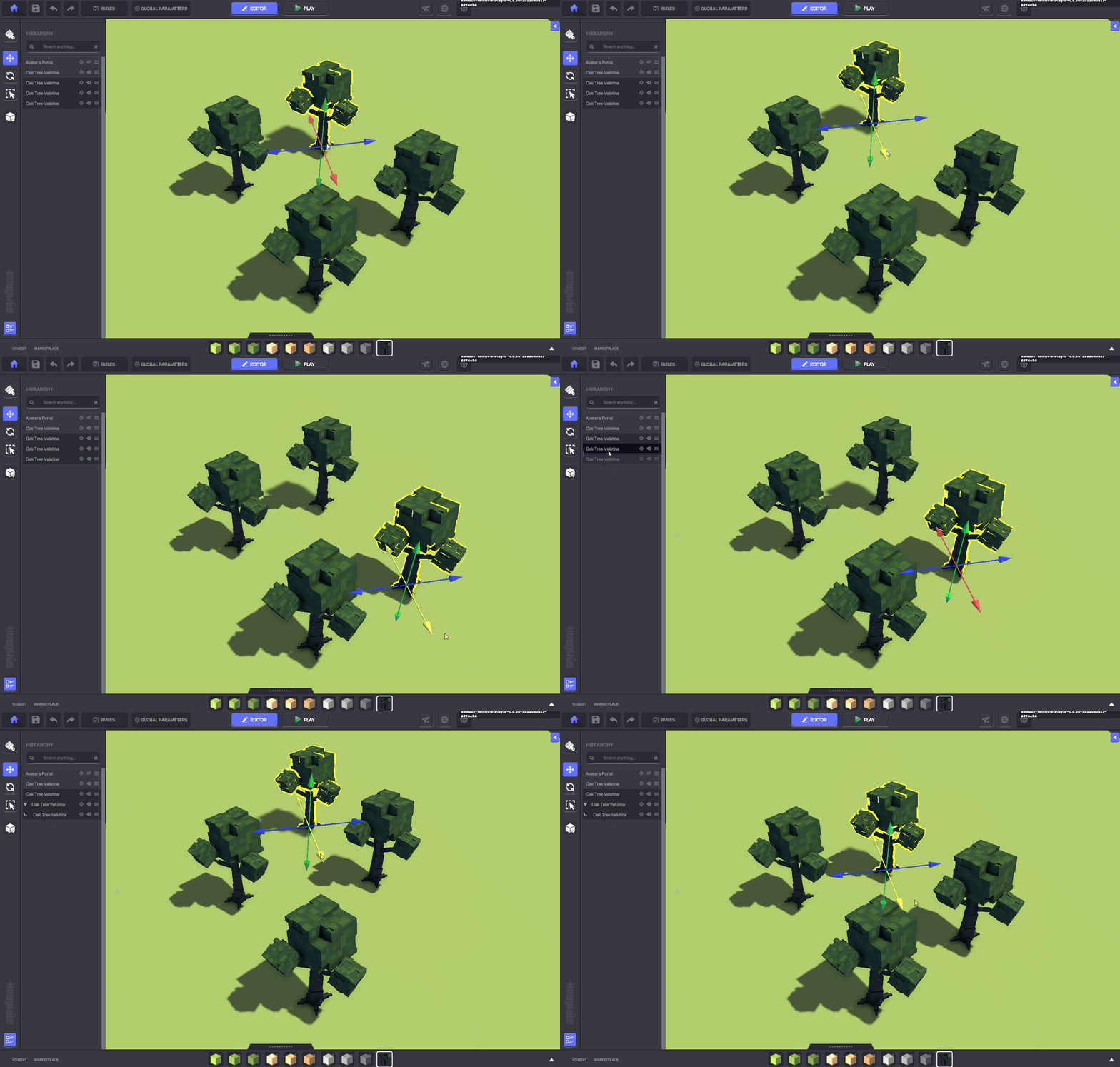
Creating a **Parent/Child relationship** between Objects can help with managing them as a group in Builder Mode and during gameplay.

When you **move or rotate the Parent** Object in the Viewport, the **Child Object will follow**.

When you **toggle visibilty of the Parent** Object in the Viewport, the **Child Object will also change**.

<figure><img src="/files/GIaWA7iHgjPruQe1iYfR" alt=""><figcaption><p>Note: This graphic shows an earlier version of Game Maker, but the drag and drop method is the same</p></figcaption></figure>

### Create Parent and Child Relationship

Click an **Object in the Hierarchy** that will be a **Child Object** and then drag and drop it **on top** **of** another Object in the list that will be its **Parent**.&#x20;

<div align="left"><figure><img src="/files/AKEDRRBcO2uLKWEPWpdg" alt="" width="359"><figcaption></figcaption></figure></div>

You will see new icons next to the Objects to show their relationship:

<img src="/files/paYhl7eieXUHTu7rO9o2" alt="" data-size="line"> **Parent Object** - the left most object

![](/files/WposVZcGLBotfKdO0lAK) **Child Object** - indented to the right under its parent<br>

To reverse this, drag and drop the Child Object between two Objects on the main level so it no longer has a parent object.\
\
**Example:**

<div align="left"><figure><img src="/files/l2crIFBm8eRRvRGgElCy" alt=""><figcaption></figcaption></figure></div>

A Child object may also be a Parent of other Objects. It will be indented to the right from its Parent Object, and its Child Object(s) will be indented to the right of it.\
\
**Example:**

<div align="left"><figure><img src="/files/29BKys615LcBr8TTvIG2" alt=""><figcaption></figcaption></figure></div>


---

# Agent Instructions: Querying This Documentation

If you need additional information that is not directly available in this page, you can query the documentation dynamically by asking a question.

Perform an HTTP GET request on the current page URL with the `ask` query parameter:

```
GET https://docs.sandbox.game/en/creator/game-maker/docs/build-menus/side-bar/hierarchy.md?ask=<question>
```

The question should be specific, self-contained, and written in natural language.
The response will contain a direct answer to the question and relevant excerpts and sources from the documentation.

Use this mechanism when the answer is not explicitly present in the current page, you need clarification or additional context, or you want to retrieve related documentation sections.