# NFT Image Display

{% hint style="success" %}
**COPY/PASTE PARAMETERS**

New in GM 0.11! Right click on a behaviour or component to copy. Then open an object, add the same behaviour or component, and right click it to paste identical parameter settings.
{% endhint %}

### Display NFTs in Your Experience

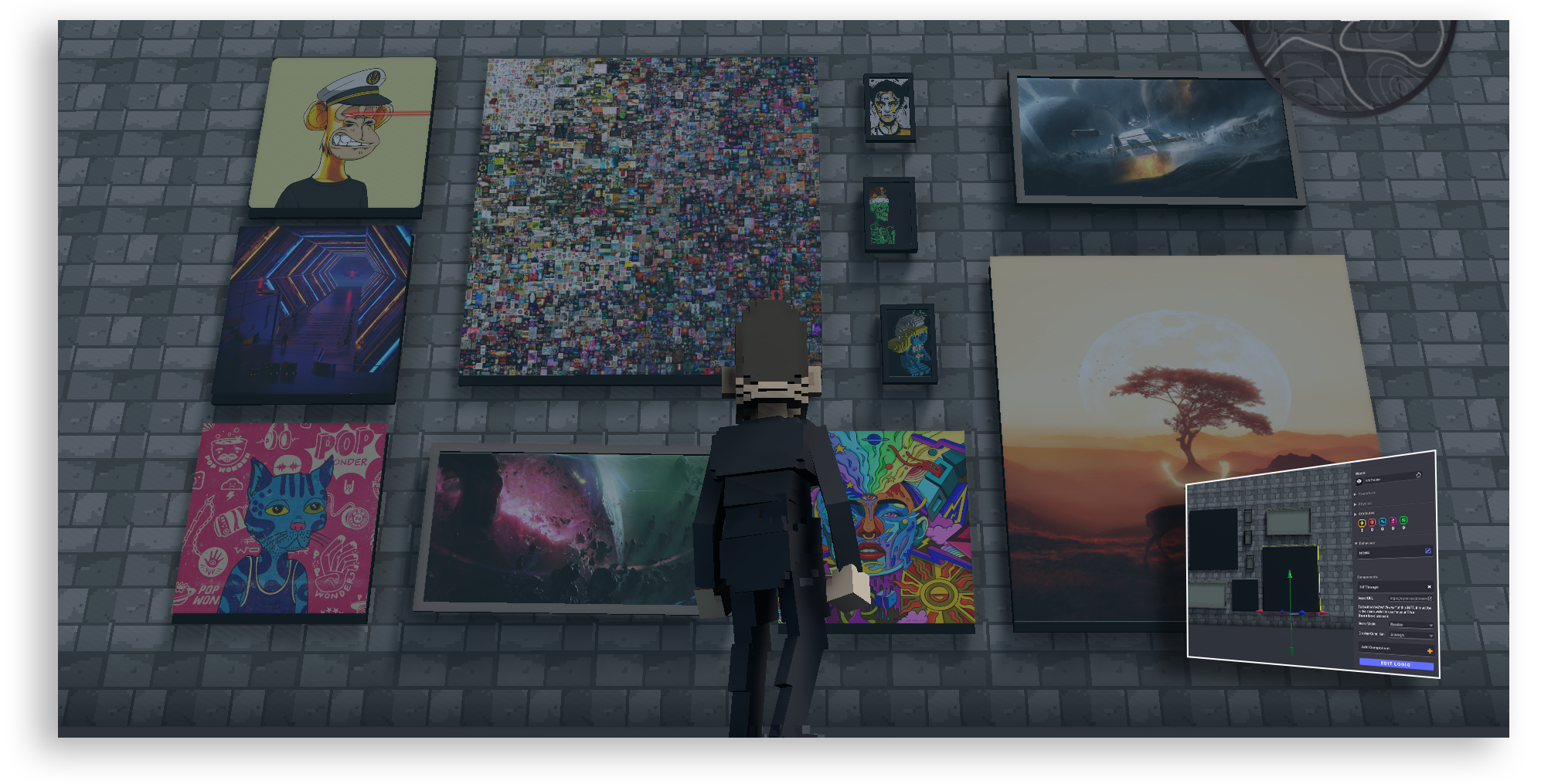
Stills, GIFs, and WEBP NFT images on the Ethereum, Polygon, and Goerli blockhains are compatible with The Sandbox Game's frame assets.

<figure><img src="/files/HUyQFEZxNo6TwehMugPA" alt=""><figcaption></figcaption></figure>

{% hint style="info" %}
[Build Singleplayer & Multiplayer Logic](/en/creator/game-maker/docs/build-singleplayer-and-multiplayer-logic.md) - about <mark style="color:green;">**\[SP]**</mark> or <mark style="color:yellow;">**\[MP]**</mark> behaviours or components
{% endhint %}

## <img src="/files/3swzfRrvsgnqyi4Xk4Qi" alt="" data-size="line"> NFT Image Display <mark style="color:yellow;">\[MP]</mark>

A frame asset will allow you to apply this component to display a still NFT image from the Ethereum, Polygon, and Goerli blockchains using a marketplace URL and other NFT data.

## Common Uses

* Display NFTs  on the Ethereum, Polygon, and Goerli blockchains in the Game Maker.

## Communications

<table data-header-hidden><thead><tr><th width="339"></th><th></th></tr></thead><tbody><tr><td><strong>Inputs:</strong> Marketplace link to NFT</td><td><strong>Outputs:</strong> Display NFT</td></tr></tbody></table>

{% embed url="<https://youtu.be/okf-a1xdSDA>" %}

### TL;DR

Add the NFT Image component to a frame-compatible asset. Get the URL from the NFT you wish to use from OpenSea and paste it into the URL section of the component. Validate and then test how it looks by pressing play.

{% hint style="info" %}
This process doesn’t import the NFT asset itself, rather the component establishes a hyperlink to the NFT from OpenSea.
{% endhint %}

#### Using a Frame <a href="#using-a-frame" id="using-a-frame"></a>

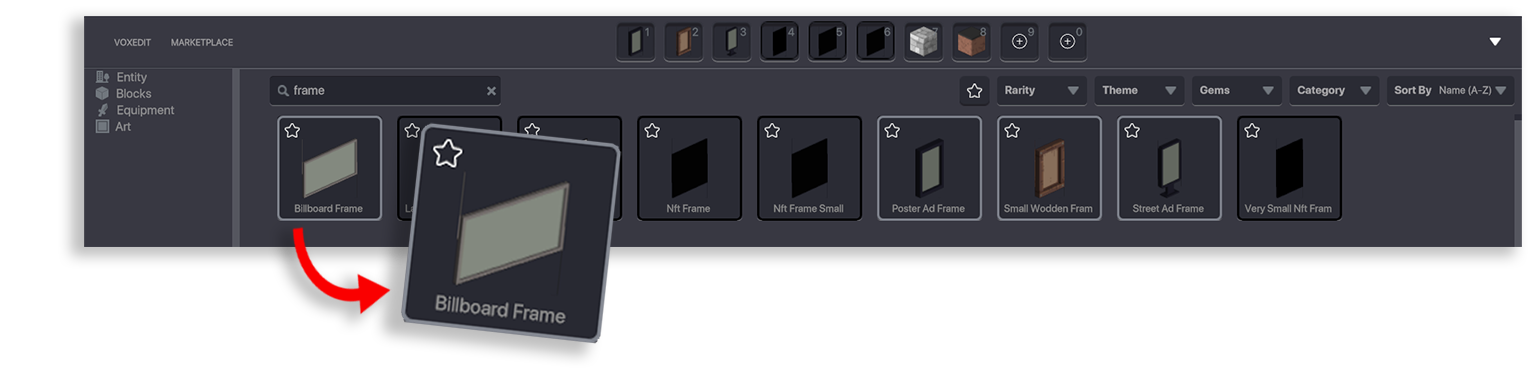
To get started you will need to have an asset with a frame built in. This is a specific characteristic of an asset that defines where on the object the NFT will be displayed.

You can create your own frames in VoxEdit by using the [**Frame Tool**](broken://pages/WQC9Dic6eOmFBvDcSD8b#frame-tool), or you can grab some readily available frames from the Library.

In this example, we are using the ***Billboard Frame*** asset in the Library.

<figure><img src="/files/pLrWBlg52wNkod92SyCT" alt=""><figcaption></figcaption></figure>

### **Using the 'NFT Image' Component**

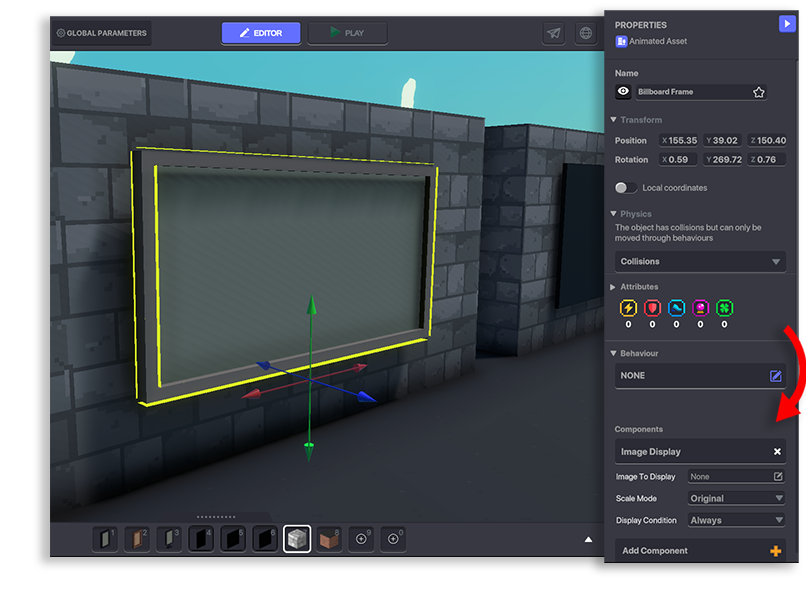
Firs&#x74;**,** place a frame-compatible asset, like the *Billboard Frame*, into the scene.

Apply the NFT Image component. If the Image Display component was applied by default, **delete it by clicking the ‘X’**.

<figure><img src="/files/XG8eNbeBhrYZHo0zojls" alt=""><figcaption></figcaption></figure>

#### **Connecting the URL** <a href="#connecting-the-url" id="connecting-the-url"></a>

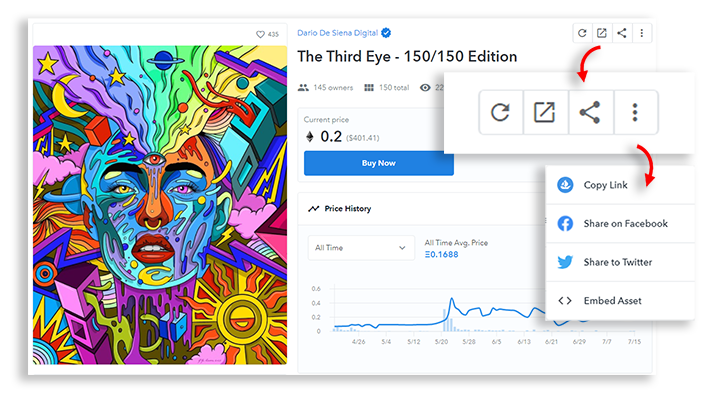
To get the URL of your desired NFT, locate it in your wallet at [OpenSea](https://opensea.io/). Click on it to open its page, click the **Share** icon, and select **Copy Link** in the dropdown menu.

<figure><img src="/files/tr4G23cLeizxR2x0gQn7" alt=""><figcaption></figcaption></figure>

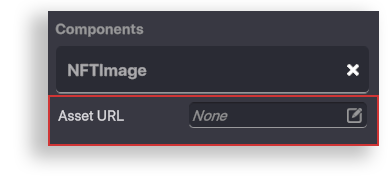
In the Game Maker NFT Image component, **click the box next to&#x20;*****Asset URL**.*

<figure><img src="/files/ldfJHPrEslLLFdJ9z2lp" alt=""><figcaption></figcaption></figure>

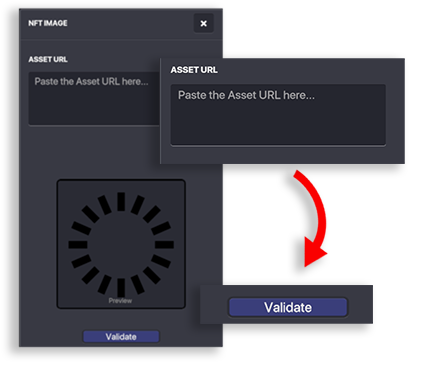
This will open a panel titled NFT IMAGE where you can **paste the URL**.

<figure><img src="/files/jjVIzu1srEVfUJhleyJF" alt=""><figcaption></figcaption></figure>

Once pasted, **click Validate**, which will make sure the URL is supported. If the link is incorrect or is an unsupported format then an error message will pop up.

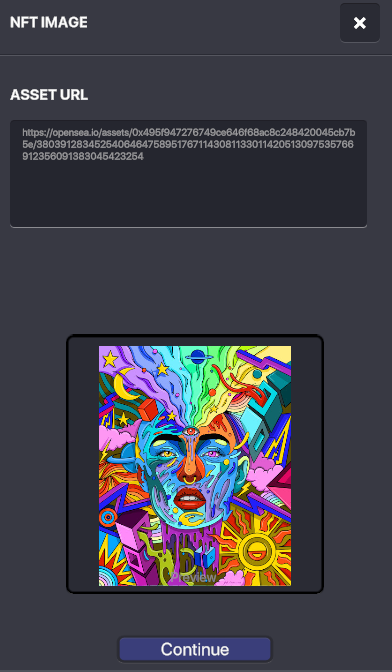
If your URL has worked then **your NFT will display as a preview** in the box below the URL.

**Click continue to finish.**

<figure><img src="/files/q9uzXTGfbg61wPgsUx4K" alt=""><figcaption></figcaption></figure>

### Test Your NFT

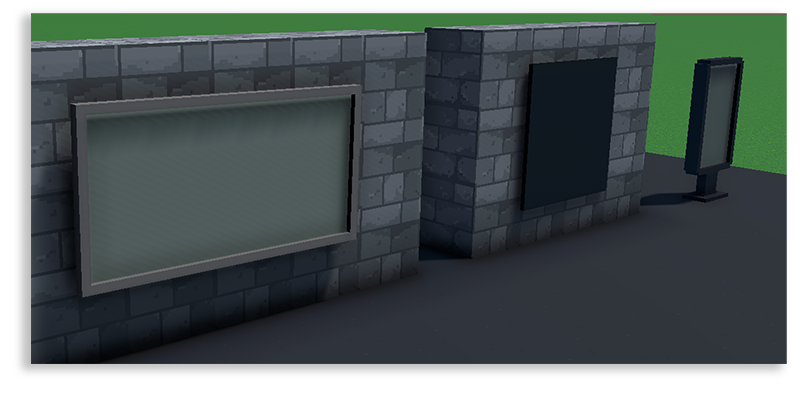
Your newly added NFT **won't display in** the **Edit mode** of Game Maker.

<figure><img src="/files/E9jLaKYSBLWUbpCOhT4F" alt=""><figcaption></figcaption></figure>

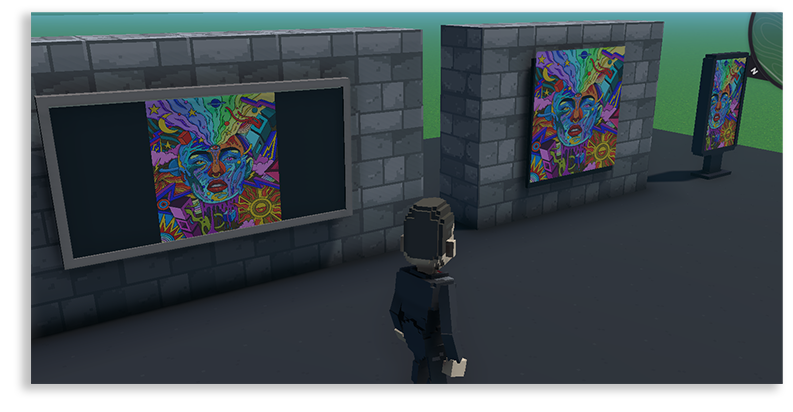
To test how it looks **click Play** or **press Tab** to view it in play mode.

<figure><img src="/files/1ZhBfsW9359lcEdMXekw" alt=""><figcaption></figcaption></figure>

### Troubleshooting

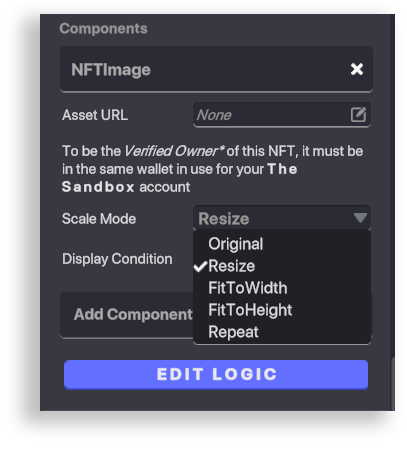
You may need to adjust the **Scale Mode** settings to fit the NFT image correctly in the frame: Original, Resize, Fit to Width, Fit to Height, or Repeat (tile).

<figure><img src="/files/h7fv7bey1Kwt3JDDKEkT" alt=""><figcaption></figcaption></figure>

{% hint style="success" %}
Use the [NFT Compatible Frame guide](https://sandboxgame.gitbook.io/the-game-maker-academy/tutorials-1/beginner-tutorials/creating-an-nft-compatible-frame) to **create a custom frame** for NFT images with VoxEdit.
{% endhint %}

​


---

# Agent Instructions: Querying This Documentation

If you need additional information that is not directly available in this page, you can query the documentation dynamically by asking a question.

Perform an HTTP GET request on the current page URL with the `ask` query parameter:

```
GET https://docs.sandbox.game/en/creator/game-maker/docs/components/nft/nft-image-display.md?ask=<question>
```

The question should be specific, self-contained, and written in natural language.
The response will contain a direct answer to the question and relevant excerpts and sources from the documentation.

Use this mechanism when the answer is not explicitly present in the current page, you need clarification or additional context, or you want to retrieve related documentation sections.