# Asset Review

## Ready to Check the Assets in Your Experience?

Since you must own all assets used in your Experience in order to launch it when the feature is available, this tool will automatically review and alert you to any assets that are not owned in the wallet connected to your account at The Sandbox. Any assets that are not marked as **Ready** can either be purchased by adding them to your shopping cart here, or you can edit your Experience in Game Maker and replace them with other assets you own.

## Open the Asset Review Manger

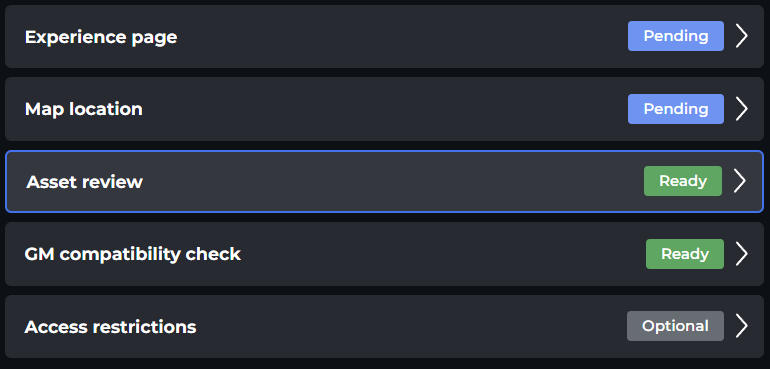
Click on the **Asset Review** button in the left menu of the [**Experience Manager**](/en/creator/game-maker/publish-experiences/experience-manager.md). Note the status is shown for the Asset Review in the Manager.&#x20;

<figure><img src="/files/vVW1yfIIw06Zdn4gRbSN" alt=""><figcaption></figcaption></figure>

Press the **Manage** button in the details panel to open it.

<figure><img src="https://lh6.googleusercontent.com/XzL1HmhSpFqRZGeBKFMZ6M47OWMSkM1tybU2Zlc0FSHqWGwxnKTo0hrFrG79o00217DDUPWiZk0ur59OzGeJhrYsAyfKUIrBcNYBVIOhVI-L74KaMzA5UmpYCMvCbzQEpaph_ZJlkUNGZ2A4BG4=s2048" alt=""><figcaption></figcaption></figure>

Click on one of the options in the Asset Review Status window to access the **Asset Review Manager**.

<figure><img src="https://lh5.googleusercontent.com/ng6rwXrUt9z_NUXyqWcgQtX-o7F5ON4_1nq7cThk8ruEJI3LC4tYjCT6gp8oKcRgg3P7T6SJUU3Da6_jVeSnzENogwaU9yXx0G_uooIum8mKZ1NqDAFUs88ph7Yvnhh2aigfEkq_LAKZuTqyvbQ=s2048" alt=""><figcaption></figcaption></figure>

## User Interface

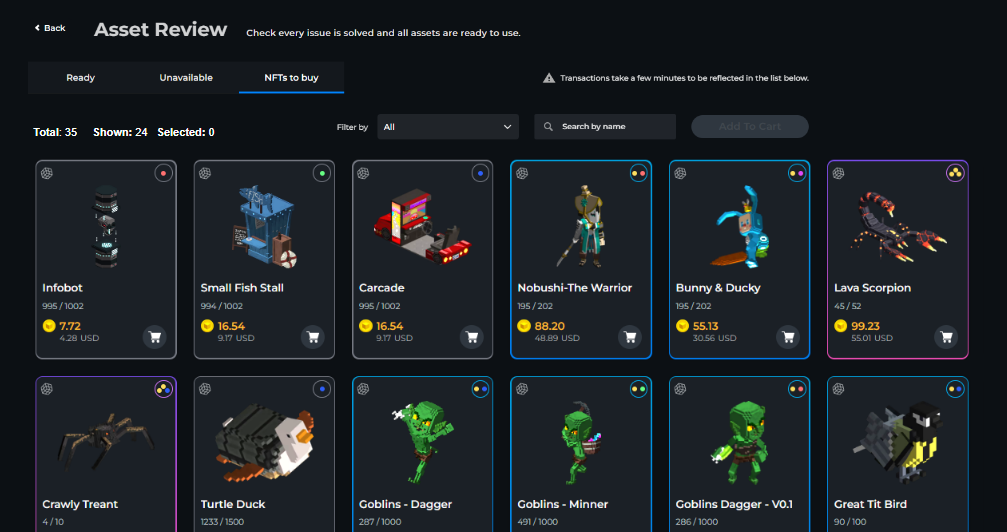
The top menu of the Asset Review Manager includes buttons to filter between assets used in your Experience that are **Ready**, **Unavailable**, or are **NFTs to Buy**. All of this data is based on what is currently in the wallet associated with the *same wallet* associated with your account at The Sandbox.

<table data-view="cards"><thead><tr><th></th></tr></thead><tbody><tr><td><strong>Ready</strong><br>All NFTs in your Experience are either your custom creations or are owned NFTs in your wallet.</td></tr><tr><td><strong>Unavailable</strong><br>Creators may choose to monetise an asset that was once available for free or mark it for private use. Replace unavailable assets in Game Maker.</td></tr><tr><td><strong>NFTs to Buy</strong><br>Some assets can be tested in Game Maker before purchase by adding them to your <strong>Wishlist</strong>. Add them to your <strong>Shopping Cart</strong> and purchase or replace them in Game Maker.</td></tr></tbody></table>

<figure><img src="/files/aNzbktjzoRKJjMDs6dzM" alt=""><figcaption></figcaption></figure>

Once the **Unavailable** or **NFTs to Buy** categories are empty, you've passed the Asset Review stage! Keep in mind that if you change the assets used in your Experience in Game Maker, you will need to do another Asset Review.

{% content-ref url="/pages/fPFKlovdJ6aKxet8Yo2f" %}
[FAQs: Experience Publishing](/en/creator/game-maker/publish-experiences/faqs-experience-publishing.md)
{% endcontent-ref %}


---

# Agent Instructions: Querying This Documentation

If you need additional information that is not directly available in this page, you can query the documentation dynamically by asking a question.

Perform an HTTP GET request on the current page URL with the `ask` query parameter:

```
GET https://docs.sandbox.game/en/creator/game-maker/publish-experiences/experience-manager/asset-review.md?ask=<question>
```

The question should be specific, self-contained, and written in natural language.
The response will contain a direct answer to the question and relevant excerpts and sources from the documentation.

Use this mechanism when the answer is not explicitly present in the current page, you need clarification or additional context, or you want to retrieve related documentation sections.