> For the complete documentation index, see [llms.txt](https://docs.sandbox.game/en/llms.txt). Markdown versions of documentation pages are available by appending `.md` to page URLs; this page is available as [Markdown](https://docs.sandbox.game/en/creator/voxedit/beginners.md).
# Beginners
Find your way in VoxEdit with core tutorial videos and hands-on activities to learn the creative modules and tools.
## Introduction to VoxEdit
How blocks and assets are used:
* Blocks can be liquid or solid with varied transparency and form walls or terrain
* Assets can have logic applied to make them interactive
{% tabs %}
{% tab title="Blocks" %}
### Blocks
Blocks are a special type of entity made in the [Block](/en/creator/voxedit/docs/block.md) editor by painting colour on a cube.
Even just a few simple blocks can be used to design a biome in [Game Maker](/en/creator/game-maker/create-experiences.md). Blocks with similar patterns can be used together to create streets, sidewalks, and more.
{% endtab %}
{% tab title="Simple Assets" %}
### Simple Assets
Simple assets are made in the [Modeler](/en/creator/voxedit/docs/modeler.md) by building with voxels and applying colour.
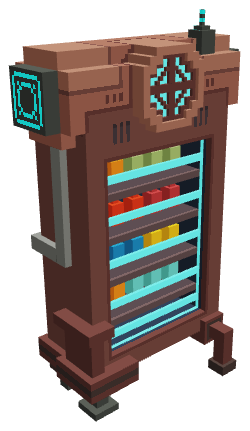
Pickable objects
Interactive Props
Collectable objects
Furniture & Scenery
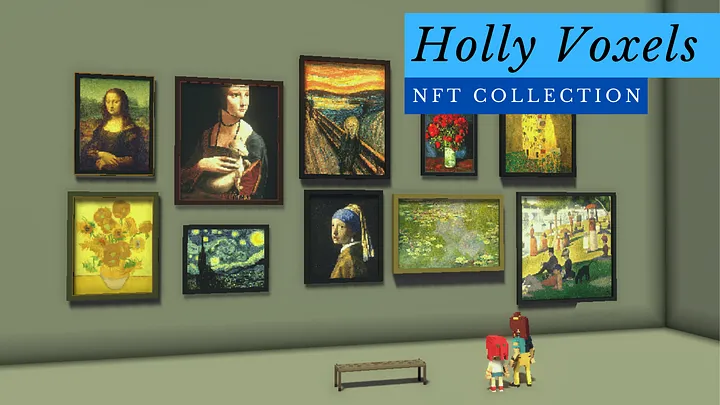
Decorative & Fine Art
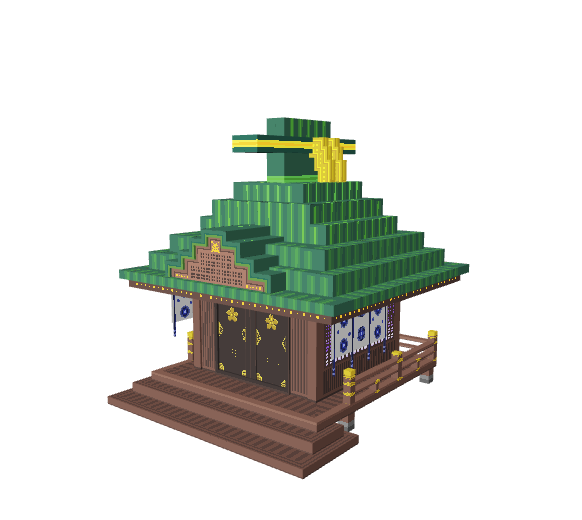
Simple Buildings
{% endtab %}
{% tab title="Compound Assets" %}
### Compound Assets
Compound assets are made in the [Animator](/en/creator/voxedit/docs/animator.md) by combining simple assets (see [Build a Rig](/en/creator/voxedit/docs/animator/build-a-rig.md)).
Furniture
Landmarks
Statues
In the Animator, simple assets are models that can be moved and rotated to design smoother details and shapes. A hierarchy, or Skeleton, controls how the models can move and rotate in relation to each other.
Combine models in the Animator
{% hint style="info" %}
The Animator and Modeler are integrated to make it easy to edit the models in your compound asset.
{% endhint %}
{% endtab %}
{% tab title="Animated Assets" %}
### Animated Assets
Once a compound asset is [**rigged**](/en/creator/voxedit/docs/animator/build-a-rig.md) together, you can create multiple animations (poses) and apply motion to each one with an easy timeline tool.
NPC
Chest
[Templates](/en/creator/voxedit/docs/templates.md) have models, animations, and motion built in to create custom assets quickly. All you need to know is how to edit simple assets to make a new animated asset with a template.
NPC (non-player character)
Door
{% endtab %}
{% endtabs %}
## Core Tutorial Videos
Use these core videos to see how VoxEdit's modules work and **try a hands-on activity** below.
## Learn Fast with Hands-on Activities
These activities are sequenced to help you learn the core functionalities of VoxEdit, and will help you learn some workflows to make great Assets!
Once you've learned the basics, see other helpful [**Resources**](/en/creator/voxedit/beginners.md#resources) to create your own projects.
### 1. :art: Paint a Block to Learn Camera & Tools
This is an **EASY** activity anyone can do, which will teach you how to paint in VoxEdit. We'll show you how to build shape in the next activity.
{% tabs %}
{% tab title="Start" %}
### Start
{% hint style="success" %}
VoxEdit is easy to learn fast! Hover your mouse over almost anything to see a tip in the bottom left. Click the keyboard button near the top right for a list of controls.
{% endhint %}
Open VoxEdit, then create a new project in the [**Block Editor**](/en/creator/voxedit/docs/navigate-voxedit-home.md#block-editor-1).
### Camera Movement
* First, let's practice basic VoxEdit camera controls to move the 3D block in the **Viewport**. Notice a white arrow points from the front face of the block.
| Controls | Keys/Mouse |
| -------------- | ---------------------------------------------------------------------------------------------------------------------------------------------------------------------------------------------------------------------------------------------------------------------------------------------------------------------------------------------------------------------------------------------------------------------------------------------------------------------------------------------------------------------------------------------------------------------------------------------------------------------------------------------------------------------------------------------------------------------------------------------------------------------------------------------------------------------------------------------------------------------------------------------------------------------------------------------------------------------------------------------------------------------------------------------------------------------------------------------------------------------------- |
| Pan camera | Hold  + Move  ↕️ ↔️ |
| Rotate camera | Hold  + Move  ↕️ ↔️ |
| Zoom in/out |
scroll wheel OR CTRL + Hold + Move ↕️ ↔️
|
| Focus (center) | **F** key |
| {% endtab %} | |
{% tab title="The Basics" %}
{% hint style="info" %}
**Essential:** The scale of a block is 32 voxels in every dimension, which translates to 1 metre in the real world.
{% endhint %}
### About Palette & Material Panels
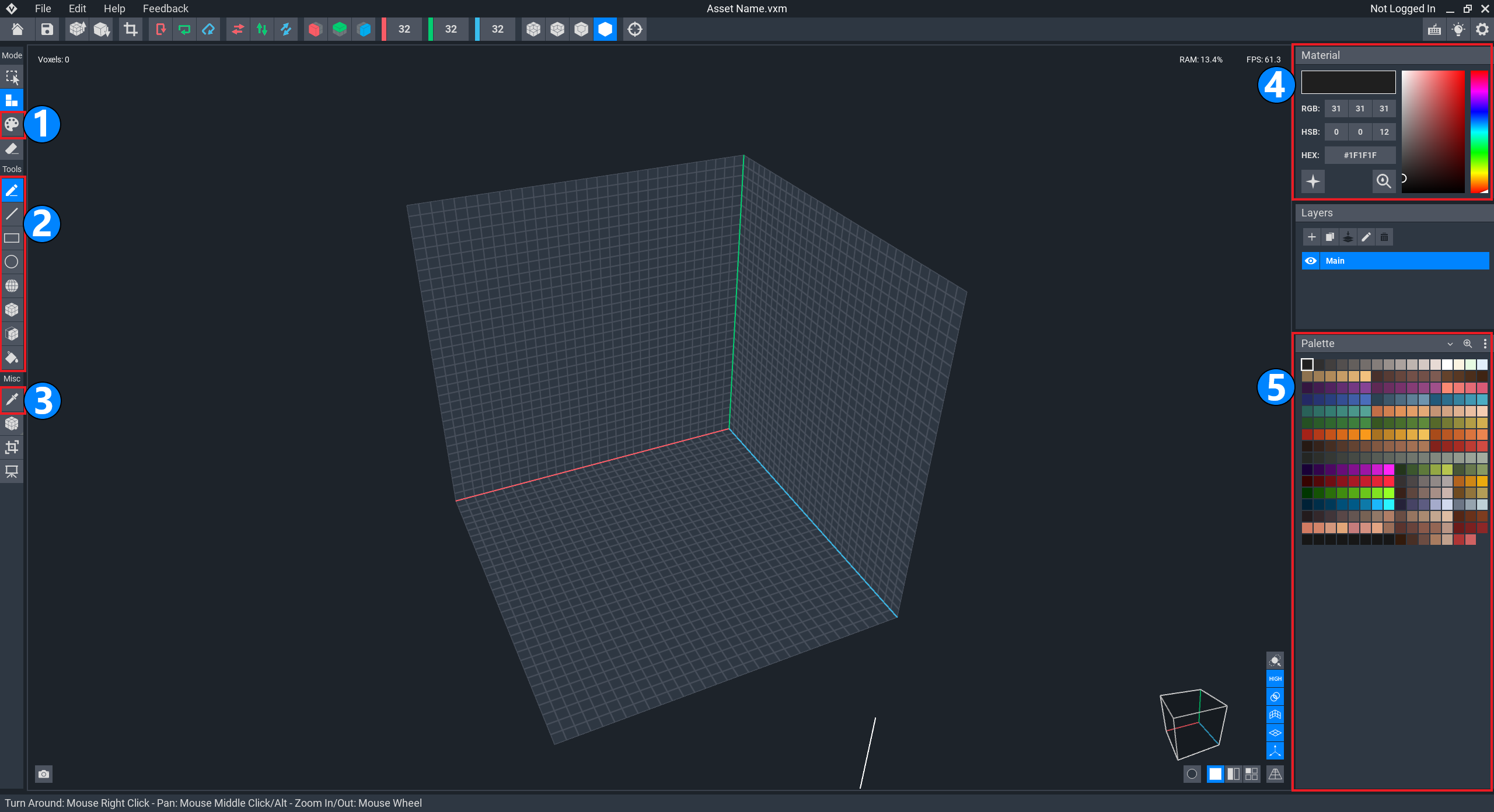
The **Palette** panel is filled with different coloured square swatches. The colour that is selected is highlighted by a white square. It also appears in the **Material** panel with the RGB, HSB, and HEX codes included.
### Paint Voxels
By default, the pen tool is active and applies the colour in the selected swatch. Left click on the block surface to edit individual voxels or left click, drag, and release to edit multiple voxels.
Practice painting voxels with the pen tool using at least five colours. Use camera controls to pan, rotate, and zoom as needed.
### Undo/Redo
Often, you will need to undo/redo your actions as you create in VoxEdit (paint on colour, change a colour, rotate/flip your design, etc).
Practice using these controls, which are also available in the Edit menu.
* **Undo** (up to 10 operations): Ctrl+Z
* **Redo** (up to 10 operations): Ctrl+Y
### Select Colours from Your Design
Select the Picker tool in the Tools panel on the left. Now you can click on any colour in your block to select it in the Palette panel.
This makes it easier to find and change colours used in your design.
{% endtab %}
{% tab title="Change Colours" %}
### Change Colours via the Palette
{% hint style="info" %}
A swatch is a location for colour information. If you replace a swatch's colour or load a different palette, the colour will change everywhere it was painted on your block.
{% endhint %}
Test each method below to change each colour painted onto the block:
* **Copy & Paste:** Right click to copy and paste one swatch's colour into another swatch location to change the colour in the block
* **Hold, Drag & Release:** Click on a colour swatch until a small square appears inside it, then drag it and place it in another swatch to replace that swatch's colour
* **Saturation:** Drag the circle in the Materials panel and move it left to right
* **Tint:** Drag the circle in the Materials panel and move it up and down
* **Hue:** Drag the triangle slider on the hue bar
* **Emissive:** Click the star to switch a colour between normal and emissive (glow) modes
* **(Optional) Codes:** Enter RGB, HSB, and HEX codes
Palette Panel (default)
Materials Panel (default)
### Sample Colours from Your Screen
In the **Materials** panel, click and hold the colour sample button , move your mouse over the colour on your screen that you want to select, and release. This replaces the selected swatch.
### Colour Blending Swatches
To blend two colours in the Palette panel, first copy and paste them in swatches that are spaced apart the number of colours you want to generate between them. Select one swatch, drag, and let go on the other swatch. Then right click and select Blend in the menu. Done!
This makes it easier to create colours for light, shadows, and texture that will blend well with the main colours in your design.
Practice using blended colours to add light and shadow to your design.
{% hint style="warning" %}
Be careful not to overwrite colour swatches you plan to keep in your project. Remember, if a used swatch colour changes, it will change in your design.
{% endhint %}
{% endtab %}
{% tab title="Use Tools" %}
### About Tools
{% hint style="info" %}
The **Block Editor** only allows tools to work in paint mode. You will learn to use the other modes in combination with these tools in the next activity about the **Modeler**.
{% endhint %}
Tools are like brushes. In the Tool bar on the left, click a tool to practice painting different block faces while moving the camera as needed.
Pen
Line
Rectangle
Circle
Box
Bucket
### Top Bar Buttons
Test the buttons below while painting with different tools. Try to create a pattern on one face.
**Show/Hide Voxel Edges:** Add and remove guide lines to use tools more precisely and create patterns.
**Mirror:** Apply the same edits around the selected axis or axes.
   **Flip:** Flip the entire block 180 degrees around a selected axis.
   **Rotate:** Turn the entire block 90 degrees around a selected axis.
### Blocks Side Panel
This panel allows you to select a block face and flip, rotate, export, or import with its buttons. You can also drag a block face into another face slot to duplicate it.
Try using these to create a pattern across all block faces with minimal painting.
{% hint style="info" %}
You can import (or export) a 32x32 pixel image with less than 256 colours. Image colours must match the palette, or they will replace it and affect block colours.
{% endhint %}
{% endtab %}
{% tab title="Follow Up" %}
### Follow Up
Follow instructions in [**Upload Assets to Workspaces**](/en/creator/voxedit/upload-assets-to-workspaces.md) to add the block to your inventory. Once you've completed the upload process, your creation will be ready to build with in your Game Maker library.
{% hint style="info" %}
* See [**Create Experiences**](/en/creator/game-maker/create-experiences.md) to learn about creating with Game Maker.
* See [**Using Blocks**](/en/creator/game-maker/docs/using-blocks.md) to learn about different block types and in Game Maker to test your creations
{% endhint %}
Now you have the foundation to use the camera, color, and important tools to create in VoxEdit. You can also view your block in your inventory on the website and use it in Game Maker.
In the next activity, you'll learn to create 3D models by combining tools with different modes in the **Modeler**.
### Resources
{% content-ref url="/pages/nCOXMMvH6dDwD5pZL4Rm" %}
[Block](/en/creator/voxedit/docs/block.md)
{% endcontent-ref %}
{% embed url="" %}
{% endtab %}
{% endtabs %}
### 2. :ice\_cube: Create a Model to Learn Tool Modes
This is an **EASY** activity anyone can do. It builds on controls, tools, and panels introduced in the previous activity and explores other modes and the basics of a model. The next activity will deepen these basics using the Animator with templates.
{% tabs %}
{% tab title="Start" %}
### Start
* Open VoxEdit, then open the **Modeler**
* Create a new project
{% endtab %}
{% tab title="The Basics" %}
### The Basics
{% hint style="info" %}
**Essential:** The Sandbox has a universal scale, where the smallest unit is a voxel. Game builders can **NOT** resize assets.
**Tip:** Design assets with a medium human (64 voxels/2 blocks/2 metres high) as a guide. Learn more: [Asset Scale](/en/creator/voxedit/docs/ve-guidelines/asset-scale.md).
{% endhint %}
#### The Modeler is used to:
* Create a simple asset, or model (explored in this activity)
* Modify a model in a complex asset made of multiple models (explored in another activity)
**A Model Includes:**
* a collision box (for interaction)
* 3D shape (voxels)
* colors (solid or emissive)
* a pivot point (an "anchor" for placement and movement in a 3D world)
* (optional) a frame surface to display images/video
{% endtab %}
{% tab title="Collision Box" %}
### Collision Box
:one: The **Viewport** in the middle of the screen is your workspace, with a grid for your model's collision box.
:two: The **volume size** for your model can be set with **X, Y,** and **Z** values. The default is the size of a block (32x32x32).
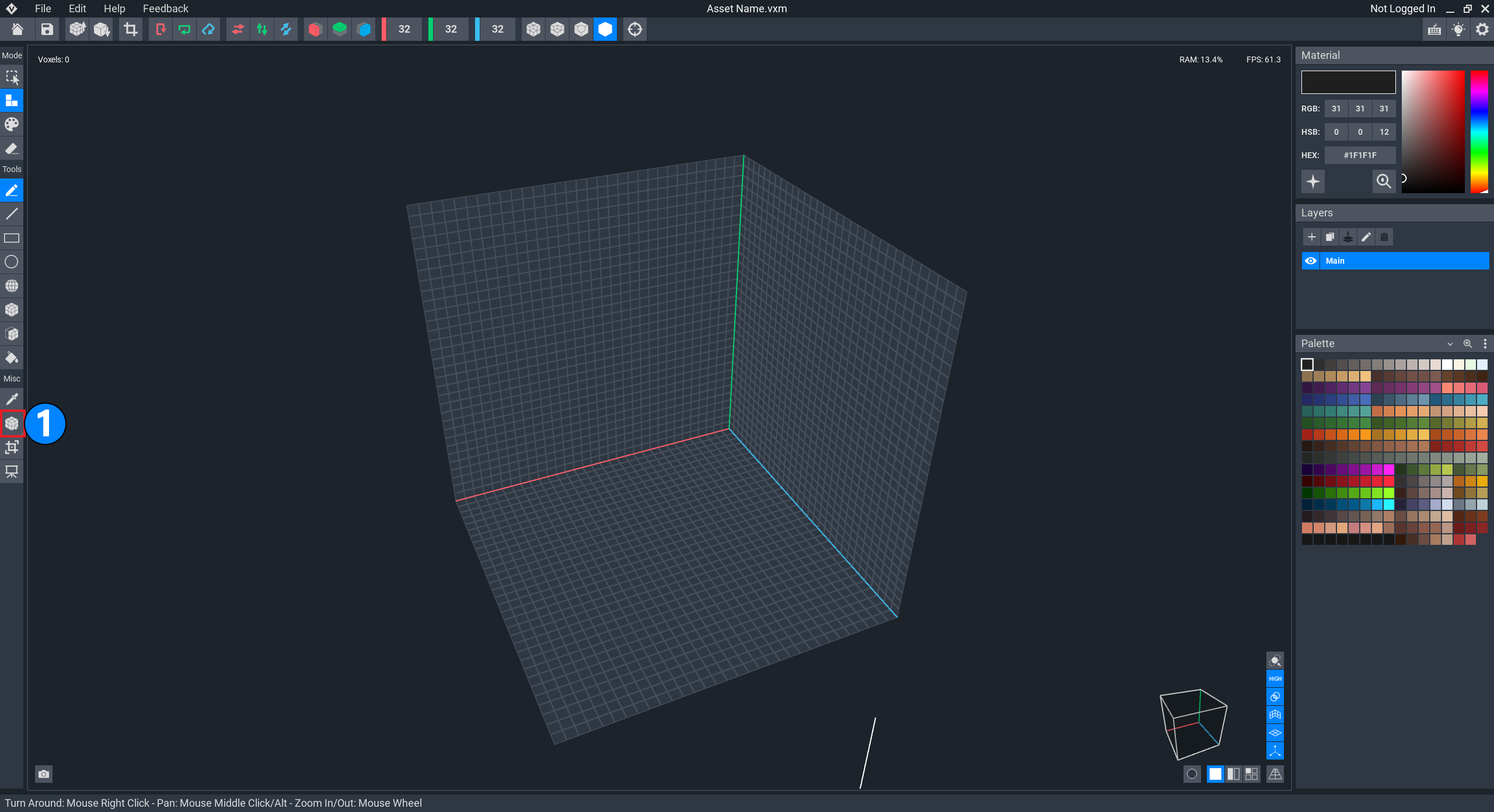
**Practice:** Set the values to (46, 35, 46) to prepare your model to become a table.
:three: The **Volume Resizer Tool** allows you to adjust the collision box in any direction with a mouse.
:four: The **Trim Volume** button shrinks the collision box to its smallest size based on the outermost voxels in every direction. This makes assets feel more natural for game world interactions.
Let's learn how to add and remove voxels.
{% endtab %}
{% tab title="Shape" %}
{% hint style="info" %}
[Use Modes & Tools Together](/en/creator/voxedit/docs/modeler/use-modes-and-tools-together.md)
**Modes** are *what you will do* to your model (Select, Create, Paint, and Erase voxels).
**Tools** are *how you will do it*. They're your set of brushes to use with each mode.
{% endhint %}
From this point on, you'll practice mode and tool combinations and move your camera to visualize, build, and paint a 3D model (remember that the white arrow is the front).
### Shape
:one: **Create** mode allows you to add voxels inside the collision box.
:two: **Erase** mode allows you to remove voxels.
:three: Tools are the brush shapes for the selected mode.
**Quick Practice:**
Select **Create** mode and use the **Pencil** tool (default mode) to "free draw" voxels into the collision box. Change to the **Face** tool to add a layer of voxels to any surface.
Select **Erase** mode and use the **Face** tool to remove a layer of voxels. Select the **Pencil** tool and remove individual voxels.
{% hint style="info" %}
**CREATE/ERASE SHORTCUT**
Hold **`SHIFT`** when in **Create** or **Erase** mode to temporarily use the opposite mode.
{% endhint %}
{% hint style="info" %}
**COPY/PASTE & MOVE VOXELS**
Use **Select** mode to select voxels in any tool shape and copy/paste or move them.
{% endhint %}
Now that you've practiced these basic methods, press **`CTRL` + `A`** to select all voxels and press **`DELETE`** to remove all voxels from your collision box to begin building your asset.
{% hint style="success" %}
**DETAILS: REDUCE 3D, INCREASE 2D**
Build simpler 3D shape so Experiences run faster and allow for more assets and logic.
Add visual depth to 3D shapes with 2D texture (colour).
{% endhint %}
#### Activity: Build a Basic Table
1. Select a base colour for your table from the palette panel.
2. Table top:
1. Set to **Create** mode and choose the **Face** tool.
2. Right click and move your mouse forward to tilt your model upward (revealing the top of the collision box).
3. Click twice to add two layers of voxels as your table top.
3. Table legs:
1. Keep the camera pointed at the underside of the table top you created.\
In the top bar, turn on the **Mirror X** and **Mirror Z** buttons (explored in the previous activity).
2. Choose the **Box** tool and draw the shape of one of your table's legs under the table top. This creates four copies because mirroring is turned on. \
:eyes: Notice the tool tips bar on the bottom left! As you click and drag, the coordinate of the starting coordinates and the delta (change) for each axis appears so you can use your tools with precision.
3. Switch back to the **Face** tool and click on the shape created many times to extend the leg all the way to the bottom of the collision box.
4. Turn off the **Mirror X** and **Mirror Z** buttons to return to normal mode.
Your table has taken shape! Now let's give it some colour.
{% endtab %}
{% tab title="Colour" %}
### Colour
:one: Paint mode allows you to change the colour of voxels in your model (it is the Block Editor's only mode).
:two: Tools are the brush shapes for painting.
:three: The Picker tool allows you to show a voxel's colour in the Palette and Material panels.
:four: and [5️⃣](https://docs.sandbox.game/en/v/creators/voxedit/docs/animator/motion-animator-timeline-panel) The Material and Palette panels were introduced in the previous activity to explore colour selection, changing, etc. Remember the colour sampler button in the Material panel can be used to add any colour from your screen to your palette.
#### Activity: Colour Your Table
**Tip:** If you're a beginning artist, use fewer colors and focus on practicing basic techniques.
**Note:** You may prefer a different order to create a sense of material, light, and details.
1. Decide what material your table is made of:\
**Glass/Metal/Polished Stone** - with a few colours, make chunky angled lines to create shine.\
**Wood** - use a few similar natural colours to create wood grain designs (avoid patterns).\
**Concrete** - use many colours in random small dots (**Pencil** tool) to create rough texture or one color for a smooth, matte look.
2. Choose a light source and decide how intense it should be:\
**Tip:** Light and shadow colors make it easier to understand what your asset is than using voxels to create shape. Without this, your asset will look flat even with the shadows created from the sky or point/spot light used in Game Maker.
1. Add highlights and lowlights in the same colour family based on where you want to create the illusion of a light source and shadows from it in your model.
2. Use colours close to your base colour for soft light and colours far from your base colour for shine or harsh light.
3. Practice:
1. Tilt the camera to view the table from the top. Click the **Voxel Edges** button in the top bar to view a grid.
2. On the surface of the table, paint a design of your choice that is 3 voxels wide on the outer edges. Tilt and rotate to carry the design down around the sides. Modify as needed for the material and light techniques you decided to use for your model.
**Tip:** Remember to use Undo and Redo as needed.
{% hint style="success" %}
**RESOURCES**
See [Colour, Texture & Depth](/en/creator/voxedit/creative-guides/art-techniques/colour-texture-and-depth.md) for tips about:
* Colour Choice & Strategy
* Texture & Materials
{% endhint %}
{% endtab %}
{% tab title="Pivot Point" %}
### Pivot Point
:one: The **Pivot** tool allows you to move the anchor point that determines how a model will be located in the game world as an asset or how it will be located in a rig when you use it in a compound asset built in the Animator.
#### Two modes:
Click the **Pivot** tool button to reveal the gizmo to move the point.
Right click the button to open a menu of options to **Set to Floor** or **Set to Center**.
{% hint style="warning" %}
Remember to adjust the pivot point if you change the collision box of your model.
{% endhint %}
#### Activity: Setting the Pivot Point
The location of the pivot point affects how builders using Game Maker can place the asset and use logic to make it move during gameplay.
1. Test the gizmo
1. Click on the Pivot tool and click and drag the blue arrow on the gizmo to move the pivot point to the center back of the model (along the red axis).
2. Hold **`SHIFT`** to lock to a grid of 0.5 voxel increments when moving.\
:eyes: Notice that coordinates appear as you move it to calculate its location precisely.
**Tip:** A pivot point centered on the back of a model is great for pictures, cabinets, etc.
2. Find the center faster
1. Right click the **Pivot** tool button and choose **Set to Center**.
**Tip:** A pivot point in the very center of a model may be used frequently for compound assets that combine multiple models in the Animator (explored in another activity).
3. Quick drop to the floor
1. Right click the **Pivot** tool button and choose **Set to Floor**.
**Tip:** Most assets have a pivot point set at the center then at the floor for easy placement.
Your pivot point is set at the center and floor of the model. Let's explore a special use case for your model.
{% endtab %}
{% tab title="Frame Surface" %}
### Frame Surface
You can display a 2D NFT you own on walls, tabletops, and more in an Experience!
The NFT must be:
* 2D (still or animated GIF)
* In the wallet that is connected to your account at The Sandbox
* On the Ethereum, Polygon, or Goerli blockchains
:one: The Frame tool defines a surface that can be used to display an NFT images when [NFT Image Display](/en/creator/game-maker/docs/components/nft/nft-image-display.md) logic is applied in Game Maker.
{% hint style="info" %}
Currently, displaying videos on frame surfaces is limited to select partners.
{% endhint %}
#### Activity: Create a Frame Surface
**Note:** NFT images come in many shapes and sizes. Our example uses a common square shape.
1. Click the **Frame** tool button.
2. Inside of the design you painted, click from one corner to another to add a frame surface. It will highlight voxels in pink while dragging and in green when you release.
3. To change the area, click and drag again in the correct area to "redraw" it. In our example, we are creating a square shaped frame surface.
4. To keep the frame surface, click the **Frame** tool button to close this mode.
5. To remove a frame surface, click the **Frame** tool button, click anywhere in the viewport to remove the green highlighted area, and click on the Frame tool button again to close the mode.
It's up to you if you want to keep the frame surface on your table and test it out in Game Maker or remove the frame surface and paint in that space.
{% endtab %}
{% tab title="Follow Up" %}
### Follow Up
Now you know the basics to create a simple asset in the Modeler.
[**Upload your asset to Workspaces**](/en/creator/voxedit/upload-assets-to-workspaces.md) and test it in Game Maker for collisions, size, shape, colors, pivot point, and (if applied) your frame surface for displaying an NFT image.
In the next activity, we'll dive into customizing templates to introduce VoxEdit's Animator basics. Everything you need is seamlessly integrated so it's easy to quickly make animated assets!
### Resources
{% content-ref url="/pages/Ax3DVpHz9EvMueZi3ftK" %}
[Modeler](/en/creator/voxedit/docs/modeler.md)
{% endcontent-ref %}
{% content-ref url="/pages/glUWbqGPON7Ov8O2xDdS" %}
[Colour, Texture & Depth](/en/creator/voxedit/creative-guides/art-techniques/colour-texture-and-depth.md)
{% endcontent-ref %}
{% embed url="" %}
{% endtab %}
{% endtabs %}
### 3. :person\_standing: Modify Templates in the Modeler & Animator
This is an **EASY** activity that requires knowledge of the Modeler since you'll go back and forth between that module and the Animator to customise an Animated Template. It's easier than you think, and the customisation options are endless once you learn the basics.
{% embed url="" %}
{% tabs %}
{% tab title="Start" %}
#### Get Started
* Open VoxEdit
* Open the Templates tab and choose any template to explore and edit.
{% endtab %}
{% tab title="Learn" %}
#### Learn
* Introduction to the [**Animator**](/en/creator/voxedit/docs/animator.md)
* What are [**nodes**](/en/creator/voxedit/docs/animator.md#skeleton-1)?
{% endtab %}
{% tab title="Practice" %}
#### Practice
* Open and close models in nodes to edit and save changes
* Quick Tip: [**How to Enter Edit Mode from Animator**](https://youtu.be/g5jiDlEwJIc) (video)
* Create a new model and link it to a node (drag and drop)
* Clone a model and link it to a node
* Customize the shape of models in your rig, trim volumes, and adjust the pivot point if needed
{% endtab %}
{% tab title="Quality Check" %}
#### Quality Check
* Test various animations and check for [**z-fighting**](/en/creator/voxedit/docs/ve-guidelines/visual-quality.md#z-fighting) or [**clipping**](/en/creator/voxedit/docs/ve-guidelines/visual-quality.md#clipping-1) in the Animator
* "[**Upload to my Workspace**](/en/creator/voxedit/upload-assets-to-workspaces.md)" - you've created an animated entity from a template!
* Test in [**Game Maker**](/en/creator/game-maker/create-experiences.md)
* Install and/or open Game Maker
* Find your animated entity in the Game Maker Library (search by name)
* Place your entity in the game world
* Add the "[**Animated Decoration**](/en/creator/game-maker/docs/behaviours/visual/animated-decoration.md)" behavior and choose the animation you want to test
* Press **TAB** to test in play mode and see the selected animation show
* Test as many times as you like (or duplicate the object you placed and set different animations to see them display all at once)
{% endtab %}
{% tab title="Follow Up" %}
So much is possible with templates since you can change color, shape, and even the pivot point of each model included.
You can even unlock templates to add nodes and motion keyframes, but we recommend learning to build a rig in the next activity and learning to add keyframes in the next two activities before modifying a template.
{% endtab %}
{% endtabs %}
### 4. :jigsaw: Build a Rig in the Animator
This is a **MEDIUM** difficulty activity to build your first rig by positioning multiple models together. A rig can be still or animated and can have a simple to very complex structure.
In this activity you'll learn a lot about the spatial relationships of the models in your compound entity and commonly used workflows to build a skeleton from scratch.
{% embed url="" %}
{% tabs %}
{% tab title="Start" %}
#### Get Started
* Open VoxEdit
* Select the Animator module in the menu on the left
* Create a new project
{% endtab %}
{% tab title="Learn" %}
#### Learn
* A simple introduction to [**compound assets**](/en/creator/basics/assets.md#three-types-of-entities)
* View our documentation about [**Skeleton**](/en/creator/voxedit/docs/animator.md#skeleton-1) controls
* Refer to [Build a Rig](/en/creator/voxedit/docs/animator/build-a-rig.md) as needed for this activity
{% endtab %}
{% tab title="Prepare" %}
#### Prepare
* Create a control node and child nodes
* Create a new model from the Animator Library as a full "sketch" of what you're going to make
* Adjust the pivot point to be centered and on the floor
* Use the mirror tool to create symmetry in the design
{% endtab %}
{% tab title="Practice" %}
#### Practice
* [**Break the "sketch" model down**](/en/creator/voxedit/creative-guides/art-techniques/3d-design/break-down-objects.md):
* Select voxels and use "Save Selected Voxels" in the Edit menu to create new models
* Repeat this until you have all of the pieces you want to assemble
* Where you had symmetry in your "sketch" model, only save one new model
* Decide which model makes sense to be linked to a parent node for this build (when it moves, all child nodes move with it)
* Link (drag and drop) it to an empty node
* Drag and drop a node into another to make it a child, position it:
* Link another model you saved to an empty node, drag and drop the node onto the parent node, and move and rotate it into position to match your "sketch"
* Test and observe the parent/child relationship:
* Move and rotate the parent node to see both models move, undo
* Move and rotate the child node to see that only it moves, undo
* Save time where there's symmetry:
* Link the same model to empty child nodes of your parent node and position them
* Test and observe modifying the model linked to more than one node:
* Open the model and edit the color in the Modeler, save and view it in the Animator
* Observe how every instance of the model linked changes
* Clone the model and paint it differently, then drag and drop it in one of the nodes to link it and see how you can quickly create varied looks in your creations
* Feel free to swap back to reuse the same model or edit colors as you lik
* Assemble the rest of your design
* Import a model you've already made into the Animator Library panel and link it to a node (drag and drop) and find a position for it in the design
* If you don't like it, remove it from the library
{% endtab %}
{% tab title="Quality Check" %}
#### Quality Check
* View your creation from all angles for quality, making any adjustments needed
* "[**Upload to my Workspace**](/en/creator/voxedit/upload-assets-to-workspaces.md)" - you've created a compound entity!
* Test in [**Game Maker**](/en/creator/game-maker/create-experiences.md)
* Install and/or open Game Maker
* Find your model in the Game Maker Library (search by name)
* Place your compound entity in the game world
* Press **TAB** to test in play mode
* Observe:
* Every model in this compound entity has its own collision boundary because there are no animations, making it feel more realistic in the game
{% endtab %}
{% tab title="Follow Up" %}
This activity empowers you to build a custom rig for anything you like: [**buildings the player can enter**](/en/creator/voxedit/creative-guides/asset-guide/structures-and-landmarks/unanimated-building-player-entry.md), spaceships with sleek angles, robots you'll animate later, and more!
{% endtab %}
{% endtabs %}
### 5. :film\_frames: Create Animations & Add Motion Keyframes
This is an **ADVANCED** activity that requires a pre-built rig so you can add motion keyframes to animations, which can be still poses or have movement.
While you can add motion to your rig before you're completely satisfied with how you've built it, you'll save a lot of time by deciding on the rig first. Pose your models in static animations to decide if you need to divide or combine models for the motion you'll add later.
{% embed url="" %}
{% tabs %}
{% tab title="Start" %}
#### Get Started
* Open VoxEdit
* Open your compound entity from Activity 4 to add motion to an animation ([**duplicate your project**](/en/creator/voxedit/docs/ve-guidelines/manage-files-and-folders.md#cleanly-duplicate-a-project) first if you want to keep your unanimated rig as a separate project)
{% endtab %}
{% tab title="Practice 1" %}
#### Practice 1
* Select a node you want to have motion and open the timeline at the bottom of the Animator
* Position the playhead to where you want the first period of motion for that node to end (this is all based on time, where each tick mark is a frame and every 24 frames is one second)
* In the Global Space, move the node to the position you want it to reach by that time
* Press spacebar to test - NOTE: the position of the playhead is important to check each time you move a node, because it will create keyframes of motion
* Modify the keyframe you made:
* Drag the end to increase the time for the movement, press spacebar to test
* Position the playhead at the end of the keyframe and move the node, press spacebar to test
{% endtab %}
{% tab title="Practice 2" %}
#### Practice 2
* Modify zoom area in the timeline to have more room to add more keyframes
* Add a new motion keyframe to follow the first one:
* Position the playhead in the empty space after the existing keyframe
* Move the same node and test with spacebar to see how the two keyframes blend together to create motion
* Add nuance to motion in the second keyframe with a quick adjustment of keyframe interpolation
* Copy a keyframe and paste after the ones you created normally and then in reverse, test with spacebar and undo if you don't want to keep them
* Complex movement:
* Create a keyframe for a parent node and a keyframe for a child node, press spacebar to test this as a combination
* Make adjustments and test the results a few times.
* Complete the rest of your animation
{% endtab %}
{% tab title="Quality Check" %}
#### Quality Check
* Quick Tip: [**How to Close Your Keyframes**](https://youtu.be/QGkDQPjOD94) (video):
* Move the playhead to the final frame of your animation and press the empty diamond button at the top of the node list in the timeline - this is a critical step to make your animation work properly
* Test thoroughly with the spacebar
* "Upload to my Workspace" - you've created an animated entity from scratch!
* Test in Game Maker
* Install and/or open Game Maker
* Find your model in the Game Maker Library (search by name)
* Place your animated entity in the game world
* Press TAB to test in play mode
* Observe:
* Every model in this compound entity has its own collision boundary because there are no animations, making it feel more realistic in the game
{% endtab %}
{% tab title="Follow Up" %}
Now you can animate any rig you can create, but keep in mind this creates a collision boundary around the whole entity. Your next step with VoxEdit is to learn how to name the animations for your entity to match up with the behaviors in Game Maker so they activate properly during play. Learn more about Animation in The Sandbox to see how it works.
{% content-ref url="/pages/j2gFHrVCJrJz8XvizJUk" %}
[Animator](/en/creator/voxedit/docs/animator.md)
{% endcontent-ref %}
{% endtab %}
{% endtabs %}
## Coming Soon
### 6. :unlock: Unlock a Template to Reuse its Animations
This is an **ADVANCED** activity to reuse the hierarchy and animations of a template to save time creating a custom animated asset.
{% tabs %}
{% tab title="About" %}
This hands-on activity will introduce VoxEdit's templates, teach you how to use one, and teach you how to "unlock" one to create custom assets.
{% content-ref url="/pages/Ig6SHAr0oBjyKyKaaMHk" %}
[Templates](/en/creator/voxedit/docs/templates.md)
{% endcontent-ref %}
{% endtab %}
{% endtabs %}
### 7. :japanese\_goblin: Bonus: Make Better Assets with 2D Texture
This is a **MEDIUM** difficulty activity to explore colour and texture to make more attractive voxel art with depth and apparent shape without adding voxel noise.
{% tabs %}
{% tab title="About" %}
This hands-on activity will explore how to create higher quality art with 2D texture, which can help you optimise your assets.
{% content-ref url="/pages/glUWbqGPON7Ov8O2xDdS" %}
[Colour, Texture & Depth](/en/creator/voxedit/creative-guides/art-techniques/colour-texture-and-depth.md)
{% endcontent-ref %}
{% endtab %}
{% endtabs %}
### 8. :bricks: Bonus: Optimize Assets with 3D Techniques
This is an **ADVANCED** activity to explore essential 3D design methods including breaking down models to compose compound assets faster and creating clean angles and 3D structure for better performance in the game world.
{% tabs %}
{% tab title="About" %}
This hands-on activity will cover common 3D techniques and best practices to construct more complex rigs or smooth curves.
{% content-ref url="/pages/5hohSHQmoVMqBtzMPMd1" %}
[3D Design](/en/creator/voxedit/creative-guides/art-techniques/3d-design.md)
{% endcontent-ref %}
{% endtab %}
{% endtabs %}
***
## Resources
{% content-ref url="/pages/Sr8E0dYtAKodameJznVD" %}
[Learn Creator Basics](/en/creator/basics.md)
{% endcontent-ref %}
## Community
### [Socials](/en/general/socials-news-blogs.md)
 VoxEdit Creations Channel | [#VoxEditWeekly](https://twitter.com/hashtag/VoxEditWeekly?src=hashtag_click)
 Game Maker Teasers channel | [#ScreenshotSaturday](https://twitter.com/hashtag/ScreenshotSaturday?src=hashtag_click) | [#tsbgamejam](https://twitter.com/hashtag/tsbgamejam?src=hashtag_click)
### Livestreams
Follow along and ask questions during our Livestreams, available on Twitch. Subscribe to receive notifications for when we go live!
{% embed url="" %}
### Discord
---
# Agent Instructions
This documentation is published with GitBook. GitBook is the documentation platform designed so that both humans and AI agents can read, navigate, and reason over technical content effectively. Learn more at gitbook.com.
## Querying This Documentation
If you need additional information that is not directly available in this page, you can query the documentation by asking a question.
Perform an HTTP GET request on the following URL with the `ask` and `goal` query parameters:
```
GET https://docs.sandbox.game/en/creator/voxedit/beginners.md?ask=&goal=
```
`ask` is the immediate question: it should be specific, self-contained, and written in natural language.
`goal` is what the user is ultimately trying to achieve, the reason they need the answer. Sharing it helps GitBook give you a better, more relevant answer. A goal is most helpful when it describes the outcome the user wants rather than restating the question. For example, with `ask=how do I create an API token`, a goal like `automate deployments from our CI pipeline` lets GitBook tailor the answer to that use case.
The response will contain a direct answer to the question and relevant excerpts and sources from the documentation.
Use this mechanism when the answer is not explicitly present in the current page, you need clarification or additional context, or you want to retrieve related documentation sections.







 near the top right for a list of controls.
{% endhint %}
Open VoxEdit, then create a new project in the [**Block Editor**](/en/creator/voxedit/docs/navigate-voxedit-home.md#block-editor-1).
### Camera Movement
* First, let's practice basic VoxEdit camera controls to move the 3D block in the **Viewport**. Notice a white arrow points from the front face of the block.
| Controls | Keys/Mouse |
| -------------- | ---------------------------------------------------------------------------------------------------------------------------------------------------------------------------------------------------------------------------------------------------------------------------------------------------------------------------------------------------------------------------------------------------------------------------------------------------------------------------------------------------------------------------------------------------------------------------------------------------------------------------------------------------------------------------------------------------------------------------------------------------------------------------------------------------------------------------------------------------------------------------------------------------------------------------------------------------------------------------------------------------------------------------------------------------------------------------------------------------------------------------- |
| Pan camera | Hold  + Move  ↕️ ↔️ |
| Rotate camera | Hold  + Move  ↕️ ↔️ |
| Zoom in/out |
near the top right for a list of controls.
{% endhint %}
Open VoxEdit, then create a new project in the [**Block Editor**](/en/creator/voxedit/docs/navigate-voxedit-home.md#block-editor-1).
### Camera Movement
* First, let's practice basic VoxEdit camera controls to move the 3D block in the **Viewport**. Notice a white arrow points from the front face of the block.
| Controls | Keys/Mouse |
| -------------- | ---------------------------------------------------------------------------------------------------------------------------------------------------------------------------------------------------------------------------------------------------------------------------------------------------------------------------------------------------------------------------------------------------------------------------------------------------------------------------------------------------------------------------------------------------------------------------------------------------------------------------------------------------------------------------------------------------------------------------------------------------------------------------------------------------------------------------------------------------------------------------------------------------------------------------------------------------------------------------------------------------------------------------------------------------------------------------------------------------------------------------- |
| Pan camera | Hold  + Move  ↕️ ↔️ |
| Rotate camera | Hold  + Move  ↕️ ↔️ |
| Zoom in/out |  scroll wheel OR
 + Move
  ↕️ ↔️
↕️ ↔️ in the Tools panel on the left. Now you can click on any colour in your block to select it in the Palette panel.
This makes it easier to find and change colours used in your design.
in the Tools panel on the left. Now you can click on any colour in your block to select it in the Palette panel.
This makes it easier to find and change colours used in your design.

 to switch a colour between normal and emissive (glow) modes
* **(Optional) Codes:** Enter RGB, HSB, and HEX codes
to switch a colour between normal and emissive (glow) modes
* **(Optional) Codes:** Enter RGB, HSB, and HEX codes


 , move your mouse over the colour on your screen that you want to select, and release. This replaces the selected swatch.
### Colour Blending Swatches
To blend two colours in the Palette panel, first copy and paste them in swatches that are spaced apart the number of colours you want to generate between them. Select one swatch, drag, and let go on the other swatch. Then right click and select Blend in the menu. Done!
This makes it easier to create colours for light, shadows, and texture that will blend well with the main colours in your design.
Practice using blended colours to add light and shadow to your design.
{% hint style="warning" %}
Be careful not to overwrite colour swatches you plan to keep in your project. Remember, if a used swatch colour changes, it will change in your design.
{% endhint %}
{% endtab %}
{% tab title="Use Tools" %}
### About Tools
{% hint style="info" %}
The **Block Editor** only allows tools to work in paint mode. You will learn to use the other modes in combination with these tools in the next activity about the **Modeler**.
{% endhint %}
Tools are like brushes. In the Tool bar on the left, click a tool to practice painting different block faces while moving the camera as needed.
, move your mouse over the colour on your screen that you want to select, and release. This replaces the selected swatch.
### Colour Blending Swatches
To blend two colours in the Palette panel, first copy and paste them in swatches that are spaced apart the number of colours you want to generate between them. Select one swatch, drag, and let go on the other swatch. Then right click and select Blend in the menu. Done!
This makes it easier to create colours for light, shadows, and texture that will blend well with the main colours in your design.
Practice using blended colours to add light and shadow to your design.
{% hint style="warning" %}
Be careful not to overwrite colour swatches you plan to keep in your project. Remember, if a used swatch colour changes, it will change in your design.
{% endhint %}
{% endtab %}
{% tab title="Use Tools" %}
### About Tools
{% hint style="info" %}
The **Block Editor** only allows tools to work in paint mode. You will learn to use the other modes in combination with these tools in the next activity about the **Modeler**.
{% endhint %}
Tools are like brushes. In the Tool bar on the left, click a tool to practice painting different block faces while moving the camera as needed.


 **Show/Hide Voxel Edges:** Add and remove guide lines to use tools more precisely and create patterns.


 **Mirror:** Apply the same edits around the selected axis or axes.
   **Flip:** Flip the entire block 180 degrees around a selected axis.
   **Rotate:** Turn the entire block 90 degrees around a selected axis.
### Blocks Side Panel
This panel allows you to select a block face and flip, rotate, export, or import with its buttons. You can also drag a block face into another face slot to duplicate it.
**Mirror:** Apply the same edits around the selected axis or axes.
   **Flip:** Flip the entire block 180 degrees around a selected axis.
   **Rotate:** Turn the entire block 90 degrees around a selected axis.
### Blocks Side Panel
This panel allows you to select a block face and flip, rotate, export, or import with its buttons. You can also drag a block face into another face slot to duplicate it.


 to select voxels in any tool shape and copy/paste or move them.
{% endhint %}
Now that you've practiced these basic methods, press **`CTRL` + `A`** to select all voxels and press **`DELETE`** to remove all voxels from your collision box to begin building your asset.
to select voxels in any tool shape and copy/paste or move them.
{% endhint %}
Now that you've practiced these basic methods, press **`CTRL` + `A`** to select all voxels and press **`DELETE`** to remove all voxels from your collision box to begin building your asset.


 [#VoxEditWeekly](https://twitter.com/hashtag/VoxEditWeekly?src=hashtag_click)
 Game Maker Teasers channel |
[#VoxEditWeekly](https://twitter.com/hashtag/VoxEditWeekly?src=hashtag_click)
 Game Maker Teasers channel |