# Manage Wallet

## Topics

Your cryptocurrency wallet is a third-party tool that is not provided by The Sandbox directly. Here, we offer documentation on the basic things you'll need to choose and manage your wallet.

<table data-card-size="large" data-view="cards"><thead><tr><th data-type="content-ref"></th><th></th></tr></thead><tbody><tr><td><a href="manage-wallet/choose-connect">choose-connect</a></td><td>Software wallet connection instructions</td></tr><tr><td><a href="manage-wallet/hardware-wallets">hardware-wallets</a></td><td>Learn about a higher security wallet option</td></tr><tr><td><a href="manage/verify-kyc">verify-kyc</a></td><td>KYC verification reduces fraud so rewards go to legitimate players, creators &#x26; owners</td></tr><tr><td><a href="security-topics/wallet">wallet</a></td><td>Recommendations to protect your digital property</td></tr><tr><td><a href="#gas-fees">#gas-fees</a></td><td>Use your allotted gasless transactions and pay gas fees in SAND with these settings</td></tr><tr><td><a href="#add-the-polygon-blockchain-network">#add-the-polygon-blockchain-network</a></td><td>Permit Polygon network transactions on your wallet</td></tr><tr><td><a href="#import-sand-and-land-tokens">#import-sand-and-land-tokens</a></td><td>Permit SAND and LAND tokens to be transacted on your wallet</td></tr><tr><td><a href="../owners/tsb-bridge">tsb-bridge</a></td><td>Guidance to move your wallet contents between Ethereum and Polygon layers</td></tr><tr><td><a href="#change-or-disconnect-a-wallet">#change-or-disconnect-a-wallet</a></td><td>If you would like to connect a different wallet or your wallet was compromised</td></tr><tr><td><a href="#i-forgot">#i-forgot</a></td><td>If you forgot which wallet you connected, your wallet password, or your security key</td></tr><tr><td><a href="security-topics/compromised">compromised</a></td><td>Recommendations if you notice unauthorised activity on your third-party wallet</td></tr><tr><td><a href="security-topics/education-links">education-links</a></td><td></td></tr><tr><td><a href="manage-wallet/faqs-wallet">faqs-wallet</a></td><td></td></tr></tbody></table>

{% hint style="info" %}
Funds and NFTs are stored in your cryptocurrency wallet, not in your account at The Sandbox.
{% endhint %}

{% hint style="danger" %}
The Sandbox team will **NEVER** request your passwords, security keys, wallet passphrases, security questions, or security passphrases. This information should always be privately secured.
{% endhint %}

{% hint style="success" %}
Providing your wallet address is safe, as it is a public record and does not allow anyone to make transactions. You may, however, prefer sharing your wallet address privately in some support cases where we may ask for it.
{% endhint %}

***

## Different Wallets to Suit Your Needs

Some cryptocurrency wallets are more suited for different experience levels and different Web3 activities which may include:

* Collecting non-fungible tokens (NFTs) like music, 2D art, or The Sandbox Assets
* Using digital applications connected to your wallet data (dapps)
* Claiming play-and-earn rewards
* Staking digital currencies for passive income

For this reason, The Sandbox allows you to choose between various software wallet types to connect and provides information about hardware wallets if you prefer added security.

<table data-card-size="large" data-view="cards"><thead><tr><th></th><th data-card-target data-type="content-ref"></th></tr></thead><tbody><tr><td><strong>Software (hot) wallet information</strong></td><td><a href="manage-wallet/choose-connect">choose-connect</a></td></tr><tr><td><strong>Hardware (cold) wallet information</strong></td><td><a href="manage-wallet/hardware-wallets">hardware-wallets</a></td></tr></tbody></table>

## Gas Fees

On the blockchain, gas fees compensate those who validate transactions. If you intend to purchase NFTs, you need cryptocurrency on the correct blockchain to pay a gas fee.

The Sandbox offers tools in your **Wallet Settings** to simplify transactions. Click on your username, select **Settings**, and click the **Wallet** tab on the left to view them:

<figure><img src="https://3927767952-files.gitbook.io/~/files/v0/b/gitbook-x-prod.appspot.com/o/spaces%2F61fllYo416R30LRxku4v%2Fuploads%2FablM9H8yMxOXpii6O9nR%2Fimage.png?alt=media&#x26;token=1b63588f-e385-4772-9786-7e17f594d72e" alt=""><figcaption></figcaption></figure>

### Gasless Transactions

Every user in The Sandbox has an allotted number of gasless transactions available each month on the Polygon network. Once they are used up, you'll need to pay gas fees for any purchases or claims.

The number of gasless transactions remaining appears on purchases and claims pages, and the renewal date for the next months' free transactions appears as well.

{% hint style="warning" %}
**SUNSETTING: PAY FEES IN SAND**

As of January 23, 2025, the **Pay Gas Fees in SAND** feature will no longer be available. With it, users could pay in one currency, SAND, instead of SAND for Marketplace content and POL for the gas fee. This change does not affect the **Gasless Transactions** feature.
{% endhint %}

## Add the Polygon Blockchain Network

There are many blockchain networks out there. The Sandbox began on Ethereum and has been transitioning to include the Polygon blockchain to reduce [gas fees](#user-content-fn-1)[^1] and make our blockchain transactions more Earth-friendly. Some wallets only allow you to use certain networks, and some may begin with a default network and allow you to add more. If you need to add the Polygon network to your wallet, it only takes a few minutes.

#### Instructions by Wallet Type

{% tabs %}
{% tab title="MetaMask" %}

### Add the Polygon Network to a MetaMask Wallet

* Open your Metamask extension and click on the network dropdown.

​![](https://3927767952-files.gitbook.io/~/files/v0/b/gitbook-x-prod.appspot.com/o/spaces%2F61fllYo416R30LRxku4v%2Fuploads%2FBlWETtfFXqP6L7iIjab6%2Fimage.png?alt=media\&token=553dc5d9-f67b-48ff-9cd8-77003195ac70)

​

* Select **Add Network** at the bottom.

​![](https://cdn-images-1.medium.com/max/1600/0*SJnyg_lQXMLQl6Aj)

​

* Type in the following information on this screen:

<table data-card-size="large" data-view="cards"><thead><tr><th></th></tr></thead><tbody><tr><td><p><strong>Network name</strong>: Polygon Mainnet</p><p><strong>RPC URL</strong>: <a href="https://polygon-rpc.com/"><strong>https://polygon-rpc.com</strong></a></p><p>​<strong>Chain ID</strong>: 137</p><p><strong>Currency Symbol</strong>: POL (formerly MATIC)</p><p><strong>Block Explorer URL</strong>: <a href="https://polygonscan.com/"><strong>https://polygonscan.com</strong></a></p></td></tr><tr><td><img src="https://cdn-images-1.medium.com/max/1200/0*e3ieKWakefGqAM3P" alt="" data-size="original"></td></tr></tbody></table>

* Then click **Save**. You are now ready to switch between networks.

​![](https://cdn-images-1.medium.com/max/1600/0*M3kp2CEldL5DdE-t)​​
{% endtab %}

{% tab title="Venly" %}

### Add the Polygon Network to a Venly Wallet

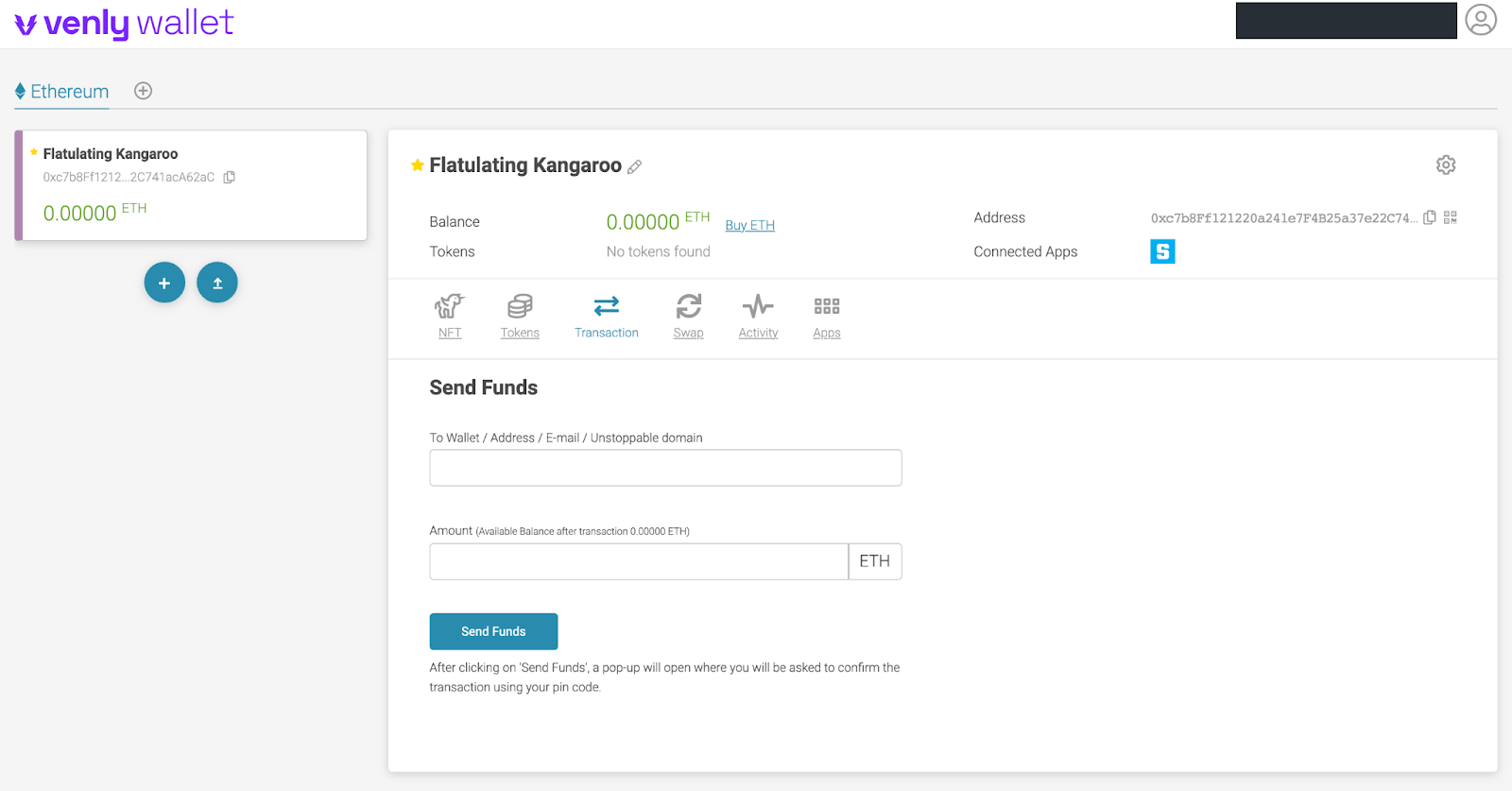
* Login to your Venly interface : [**https://wallet.venly.io/**](https://wallet.venly.io/)

<figure><img src="https://cdn-images-1.medium.com/max/1600/0*JpCHJ1N4E2I-uFhc" alt=""><figcaption></figcaption></figure>

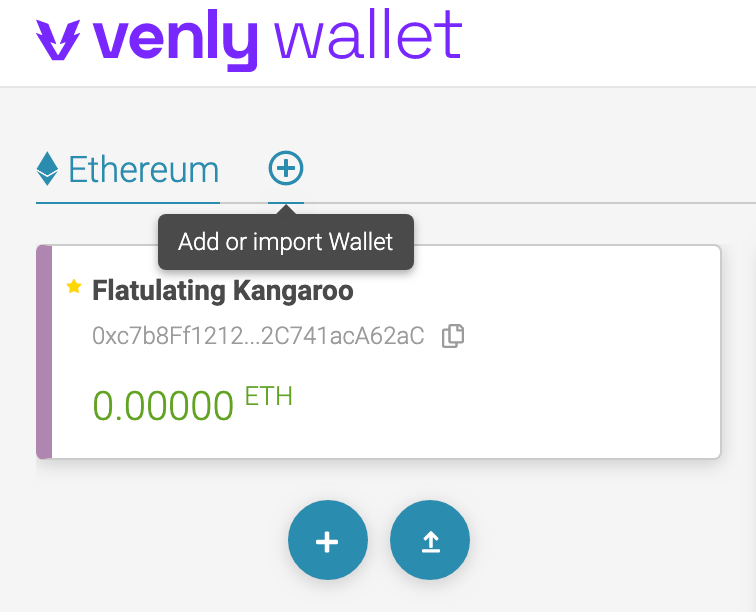
* Click **Add or import Wallet**.

<figure><img src="https://cdn-images-1.medium.com/max/1600/0*ODLAV8GyeldJhoUE" alt="" width="375"><figcaption></figcaption></figure>

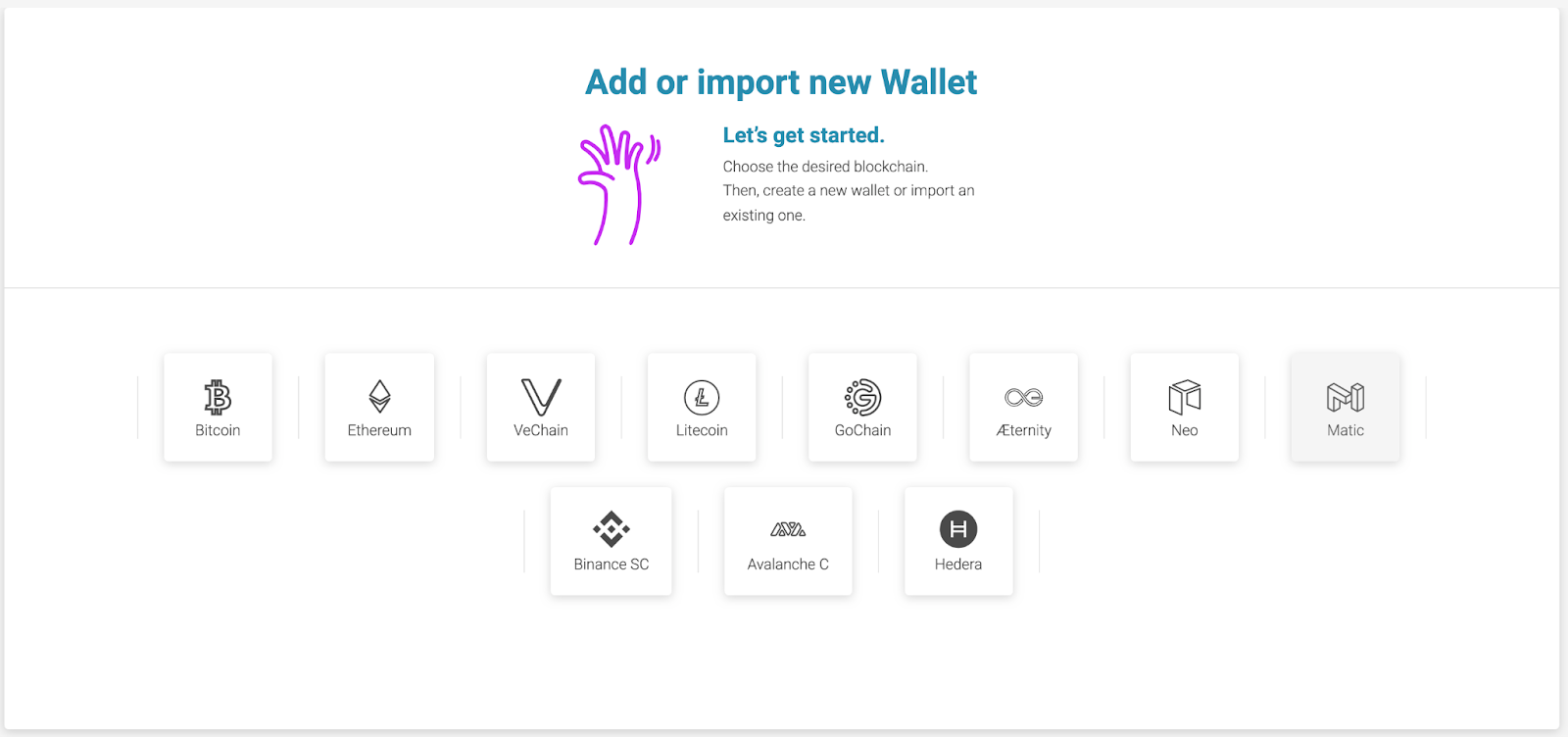
* Then select **POL** (formerly MATIC).

<figure><img src="https://cdn-images-1.medium.com/max/1600/0*-bPlGW2Oariqns-9" alt=""><figcaption></figcaption></figure>

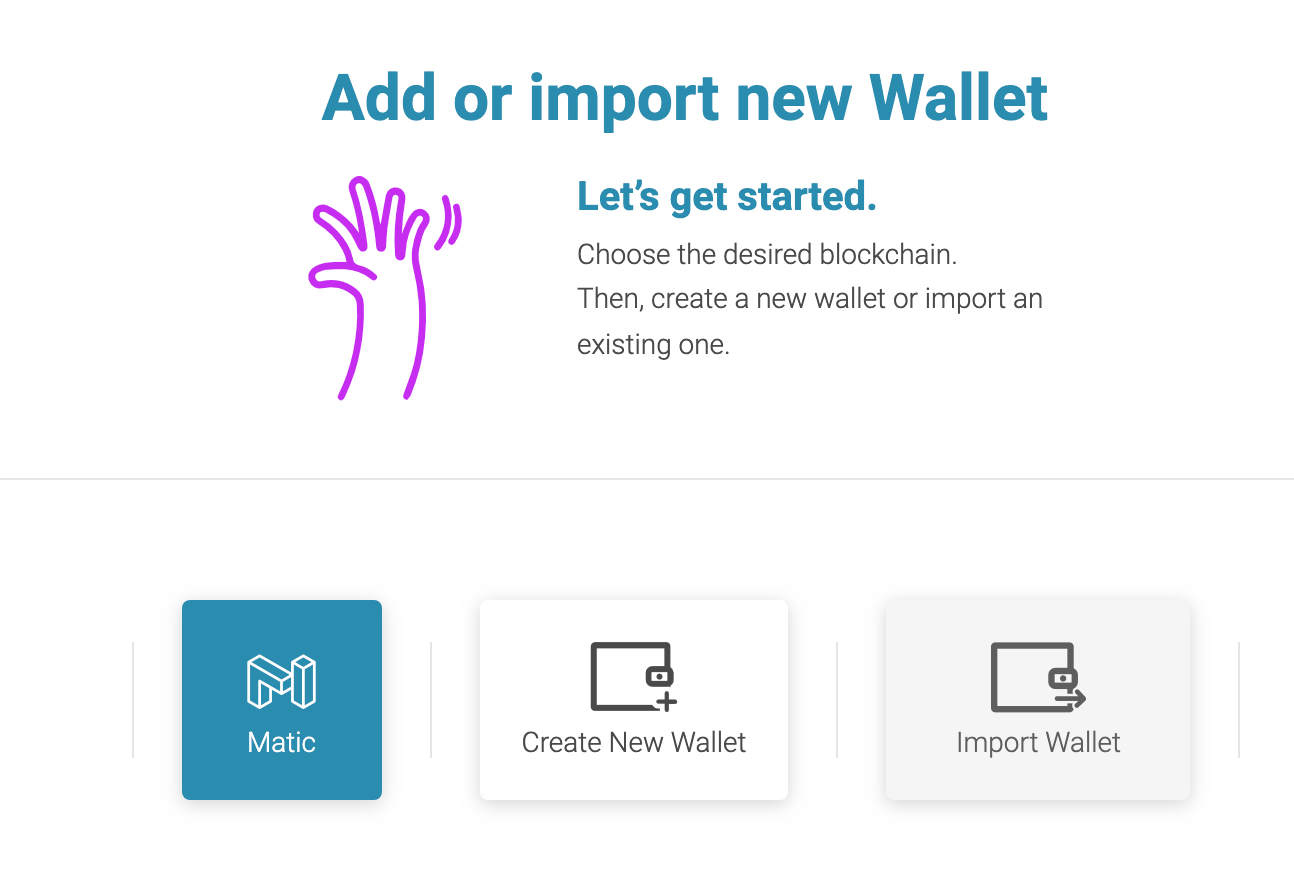
* Select **Import Wallet**.

<figure><img src="https://cdn-images-1.medium.com/max/1600/0*eBw6fhgSxDYwDe6V" alt="" width="375"><figcaption></figcaption></figure>

* Select **Import from Ethereum** and pick the wallet you want to use.

<figure><img src="https://cdn-images-1.medium.com/max/1600/0*0v-wtQaZve8wiYj0" alt="" width="375"><figcaption></figcaption></figure>

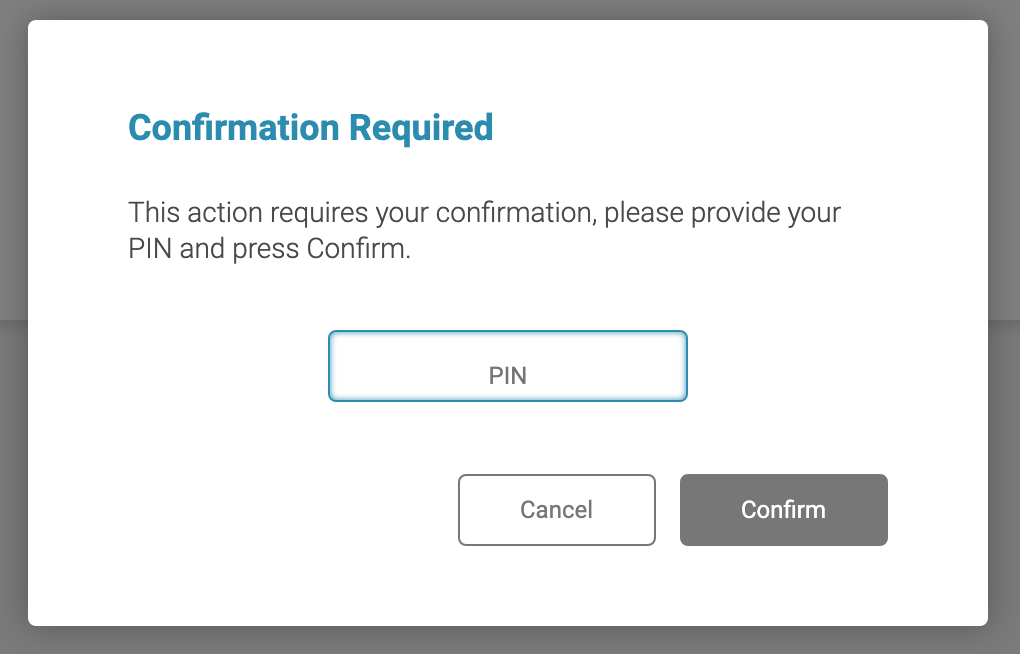
* Confirm PIN.

<figure><img src="https://cdn-images-1.medium.com/max/1600/0*01UJ0KNbb0lqVjv_" alt="" width="375"><figcaption></figcaption></figure>

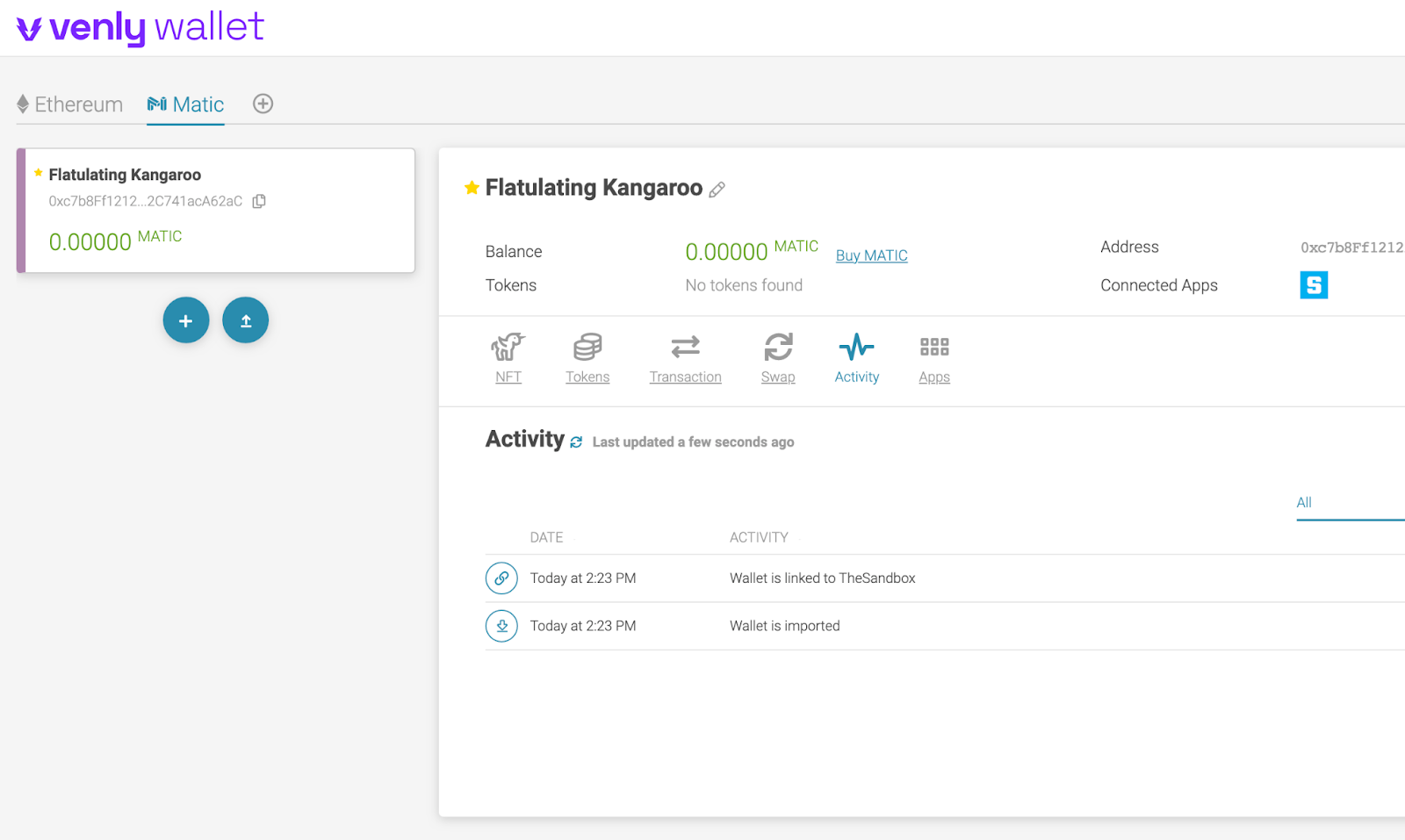
* Your wallet is ready.

<figure><img src="https://cdn-images-1.medium.com/max/1600/0*14TEf3Vn-r9qwa9d" alt="" width="563"><figcaption></figcaption></figure>
{% endtab %}
{% endtabs %}

## Import SAND and LAND Tokens

There are also many token types out there, such as digital currency or NFTs from a certain source. Rather than having a widely connected wallet at the start, you have greater security by connecting only what you need. It only takes a few minutes to enable SAND and LAND tokens for your wallet.

#### Instructions for MetaMask Wallet

Use the addresses in the [**Add Token Address**](#3.-add-the-correct-token-address) tab below to add SAND and LAND tokens to any wallet type. If adding tokens on the Polygon network,&#x20;

{% tabs %}
{% tab title="1. Select Network" %}

### 1. Select Network

Based on the network the tokens you wish to add to your wallet, select between:

* Ethereum Mainnet option
* Pol (Polygon) Mainnet option

<figure><img src="https://3927767952-files.gitbook.io/~/files/v0/b/gitbook-x-prod.appspot.com/o/spaces%2F61fllYo416R30LRxku4v%2Fuploads%2FBzpnJlmNCrTocyS4PF7Y%2Fimage.png?alt=media&#x26;token=fb933ad2-ea86-4dfc-a755-c97ed84bd17f" alt=""><figcaption><p>POL was formerly MATIC</p></figcaption></figure>

{% hint style="info" %}
If you don't see *POL (Polygon) Mainnet*, you need to [**Add the Polygon Blockchain Network**](#add-the-polygon-blockchain-network) to your wallet.
{% endhint %}
{% endtab %}

{% tab title="2. Choose Import" %}

### 2. Choose "Import Tokens" and "Custom Token"

Open your MetaMask wallet and scroll to the bottom of it. Click the **Import Tokens** button.

<figure><img src="https://3927767952-files.gitbook.io/~/files/v0/b/gitbook-x-prod.appspot.com/o/spaces%2F61fllYo416R30LRxku4v%2Fuploads%2FK8hudybFFYVHL9BGe8fW%2Fimage.png?alt=media&#x26;token=3c6b20a9-934e-4ac5-86d4-088ca12b6c55" alt=""><figcaption></figcaption></figure>

Click the **Custom Token** tab.

<figure><img src="https://3927767952-files.gitbook.io/~/files/v0/b/gitbook-x-prod.appspot.com/o/spaces%2F61fllYo416R30LRxku4v%2Fuploads%2Fd4f5285IMqTmTpFkA1xe%2Fimage.png?alt=media&#x26;token=b0ceb23b-f305-427a-9da4-c9fe0ad34d2d" alt=""><figcaption></figcaption></figure>
{% endtab %}

{% tab title="3. Add Token Address" %}

### 3. Add the Correct Token Address

In the **Token Contract Address** box in Metamask, paste the correct token address to add to your wallet.

<figure><img src="https://3927767952-files.gitbook.io/~/files/v0/b/gitbook-x-prod.appspot.com/o/spaces%2F61fllYo416R30LRxku4v%2Fuploads%2FWdFFxV5sX62h5WKJ2aeP%2Fimage.png?alt=media&#x26;token=1d59e99f-d0c2-4815-9be5-a146756e2c28" alt=""><figcaption></figcaption></figure>

Use the information below to choose the correct token contract address for the token type you wish to allow in your wallet.&#x20;

{% hint style="warning" %}
**IMPORTANT NOTE**

LAND was migrated to a new contract on the Ethereum network in 2022 and is now being migrated to Polygon using [**The Sandbox Bridge**](https://www.sandbox.game/en/me/bridge/). \
Bridging LAND to Polygon grants multipliers in our staking programs, and all upcoming new features will be developed and deployed on Layer 2 (Polygon).
{% endhint %}

#### Ethereum Tokens

<table data-card-size="large" data-view="cards"><thead><tr><th>Token</th><th>Network Link</th><th>Note</th><th>Contract Address</th></tr></thead><tbody><tr><td>SAND</td><td><a href="https://bit.ly/3gJW9Cp"><strong>Etherscan</strong></a></td><td>Used to purchase Marketplace content and stake on the Ethereum network.</td><td><code>0x3845badAde8e6dFF049820680d1F14bD3903a5d0</code></td></tr><tr><td>LAND</td><td><a href="https://bit.ly/3APb2iw"><strong>Etherscan</strong></a></td><td>Use from January 2022. If prompted, type "0" in the "Token Decimal" box.</td><td><code>0x5CC5B05a8A13E3fBDB0BB9FcCd98D38e50F90c38</code></td></tr><tr><td>LAND</td><td><a href="https://bit.ly/31BGL71"><strong>Etherscan</strong></a></td><td>Used prior to 2022. Please migrate to the new contract. See: <a href="https://medium.com/sandbox-game/the-sandbox-land-smart-contract-migration-4293d235f27f"><strong>The Sandbox LAND Smart Contract Migration</strong></a>.</td><td><code>0x50f5474724e0ee42d9a4e711ccfb275809fd6d4a</code></td></tr></tbody></table>

#### Polygon Tokens

<table data-card-size="large" data-view="cards"><thead><tr><th>Token</th><th>Network Link</th><th>Note</th><th>Contract Address</th></tr></thead><tbody><tr><td>SAND</td><td><a href="https://polygonscan.com/address/0xbbba073c31bf03b8acf7c28ef0738decf3695683"><strong>Polygonscan</strong></a></td><td>Used to purchase Marketplace content, purchase  and stake on the Polygon network.</td><td><code>0xbbba073c31bf03b8acf7c28ef0738decf3695683</code></td></tr><tr><td>LAND</td><td><a href="https://polygonscan.com/address/0x9d305a42A3975Ee4c1C57555BeD5919889DCE63F"><strong>Polygonscan</strong></a></td><td>LAND sales are now on the Polygon network.</td><td><code>0x9d305a42A3975Ee4c1C57555BeD5919889DCE63F</code></td></tr></tbody></table>
{% endtab %}

{% tab title="4. Confirm" %}

### 4. Confirm

Click the **Add Custom Token** button.&#x20;

<figure><img src="https://3927767952-files.gitbook.io/~/files/v0/b/gitbook-x-prod.appspot.com/o/spaces%2F61fllYo416R30LRxku4v%2Fuploads%2FzrPAlzdCtaOd9MCByW9j%2Fimage.png?alt=media&#x26;token=d8dd7460-1d4e-42d3-98ef-5789ade6c41f" alt=""><figcaption></figcaption></figure>

Finally, click the **Import Tokens** button to complete the setup.

<figure><img src="https://3927767952-files.gitbook.io/~/files/v0/b/gitbook-x-prod.appspot.com/o/spaces%2F61fllYo416R30LRxku4v%2Fuploads%2FbpuGXbYrREf9O5LrpaAv%2Fimage.png?alt=media&#x26;token=44bb4708-de83-4369-8070-c1176431672b" alt=""><figcaption></figcaption></figure>
{% endtab %}
{% endtabs %}

## Change or Disconnect a Wallet

You can now disconnect a wallet from your account at The Sandbox and connect another one. This can be helpful if:

* Your wallet was compromised.
* You want to change to a different type of wallet with other strengths or benefits.
* You began your journey with a beginner friendly wallet and are ready for a more advanced one.

{% hint style="warning" %}
**WALLET SECURITY ISSUE?**

Along with disconnecting a compromised wallet from your account, we recommend reviewing the [**My Wallet Was Compromised**](https://docs.sandbox.game/en/accounts/security-topics/compromised) page for helpful information.
{% endhint %}

{% tabs %}
{% tab title="Important Information" %}

### Can I connect a wallet I used on a different account?

No. You will not be able to connect a wallet that has been used on another account at The Sandbox

{% hint style="warning" %}
**ONE ACCOUNT CONNECTION PER WALLET**\
For security reasons, a wallet may only be connected to **ONE** account at The Sandbox ever. \
\
You **can NOT** connect a wallet you have used on a different account at The Sandbox, but you **can** reconnect a wallet to the same account again if needed.
{% endhint %}

### Does disconnecting a wallet delete anything?

Disconnecting a wallet **only removes ACCESS** to a wallet's data via The Sandbox website and software.

* It does **NOT** delete your account at The Sandbox.
* It does **NOT** delete your connected Wallet.\
  \- You can still access the wallet through the wallet provider's website, browser extension, or app if these options are available.
* It does **NOT** delete any digital assets you own.\
  \- You can still find your tokens in the wallet and view them on an external marketplace like OpenSea.
* It does **NOT** have any affect on your KYC status if you completed this process on your account at The Sandbox.\
  \- Note that KYC can only be completed on **ONE** account per person at The Sandbox.
  {% endtab %}

{% tab title="Timing & Visibility on Your Account" %}

### Blockchain smart contracts may affect what is visible after disconnecting a wallet

Some other information you may expect to be connected to your account are actually connected to the timing of your activities in The Sandbox and the wallet connected at the time. This is due to the nature of the blockchain technology that drives the ecosystem so you can Play, Create, and Earn in The Sandbox.

{% hint style="danger" %}
Smart contracts created by your activities are **NOT** modified when you change your connected wallet, so some information you expect to see may not appear on your account if you disconnect a wallet and connect a different one.
{% endhint %}

{% hint style="info" %}
Depending on the nature of smart contracts that are created from your activity in The Sandbox, it may be possible to see information related to your previous wallet by connecting it to your account again. It depends on details within the contracts such as the time period to redeem rewards.
{% endhint %}

### Pending rewards and claims

If you have pending claims and rewards due to participation in Seasons, Events, contests, Staking, etc, you may not see them on a newly connected wallet depending on the timing of claims being created by The Sandbox.

{% hint style="warning" %}
You may find it best to wait to disconnect your wallet until you are able to claim what you have earned from Play & Earn, Staking, etc.
{% endhint %}

{% hint style="danger" %}
**WITHDRAW STAKED FUNDS BEFORE DISCONNECTING A WALLET**\
Your Staked SAND will remain in the pool even if you disconnect your wallet, and it will remain associated with that wallet. You can only claim rewards from it or withdraw the funds if the wallet is connected to your Sandbox account.\
\
Once you have withdrawn staked funds on your current wallet, you can transfer them to the other wallet you wish to use, connect the wallet, and stake the funds again with the new wallet associated to the staking action.
{% endhint %}

### Pending sales on the Marketplace

If you have created assets, minted them as NFTs, and put them for sale on the Marketplace, earnings will go to the wallet that was connected to the account when items were put up for sale, not the wallet that is connected when your items sell. Check the formerly connected wallet to see if expected earnings have been sent there.
{% endtab %}

{% tab title="Transfer Content " %}
{% hint style="info" %}
You can transfer $SAND tokens to your preferred wallet. There should be an option to "Send" currency within the wallet itself.
{% endhint %}

{% hint style="info" %}
You can transfer NFTs, such as LAND and ASSETs to another of your wallets using the "Gifting" features on NFT exchanges like OpenSea and Rarible.
{% endhint %}

{% hint style="danger" %}
**Triple-check** that any wallet addresses you are sending your $SAND and NFTs to is correct before initiating the transfer. There is no way to recover currency or NFTs that were sent to an incorrect address.
{% endhint %}
{% endtab %}
{% endtabs %}

### Wallet Disconnection Process

{% tabs %}
{% tab title="Sign In & Begin" %}

1. In the top right of [**The Sandbox website**](https://www.sandbox.game), select **Sign In** to access your account. Follow the usual prompts to log in to your account through your social account or wallet.

![](https://3927767952-files.gitbook.io/~/files/v0/b/gitbook-x-prod.appspot.com/o/spaces%2F61fllYo416R30LRxku4v%2Fuploads%2FW79tMCunnpWnlJyLk08P%2Fimage.png?alt=media\&token=913d7bb8-75fb-46b6-8937-813dce7e2a63)

2. Click on your Username to open the dropdown menu and select **Settings.** Then use the menu on the left and then click on the **Wallet settings** sub-page.<br>

   <div align="left"><figure><img src="https://3927767952-files.gitbook.io/~/files/v0/b/gitbook-x-prod.appspot.com/o/spaces%2F61fllYo416R30LRxku4v%2Fuploads%2FkfJHZec4nkrEs7zZ1ZnI%2Fimage.png?alt=media&#x26;token=849ebcc4-22a0-455d-bb31-1faff228bf77" alt="" width="206"><figcaption></figcaption></figure></div>
3. On this page you will see the address for the wallet that is currently connected to your account and details of any wallets that were previously connected to the account. \
   \
   Click on the link to **Disconnect Wallet** beneath the wallet address to open a popup and begin the disconnect process.

<figure><img src="https://3927767952-files.gitbook.io/~/files/v0/b/gitbook-x-prod.appspot.com/o/spaces%2F61fllYo416R30LRxku4v%2Fuploads%2FpoF1iHEQoi0fDsWCXgDv%2Fimage.png?alt=media&#x26;token=1fe9fc49-c48d-4f20-b56e-070697cd0555" alt=""><figcaption></figcaption></figure>
{% endtab %}

{% tab title="Review Changes" %}
4\. Review the popup window explaining what will change about your Sandbox Account due to disconnecting access to the connected wallet.\
\
Any tokens contained in the wallet that is currently connected will no longer be visible on your Sandbox account, including SAND, LAND, Avatars, NFTs, Claims, and Rewards. \
\
As noted above, none of this content is deleted, you are merely removing access to see it and use it on your Sandbox account. If you are missing claims, rewards, or proceeds from selling your content on the Sandbox Marketplace, review the section above about [**blockchain related information**](#blockchain-smart-contracts-may-affect-what-is-visible-after-disconnecting-a-wallet) that may not be visible on your account after disconnecting a wallet.&#x20;
5\.  Click the checkbox in the window to acknowledge that you are aware disconnecting your wallet will remove access to content in the wallet via your Sandbox account and software. Then click the "**Disconnect wallet**" button.<br>

```
<figure><img src="https://3927767952-files.gitbook.io/~/files/v0/b/gitbook-x-prod.appspot.com/o/spaces%2F61fllYo416R30LRxku4v%2Fuploads%2FjChqtfunDrkYIKQPyTWm%2Fimage.png?alt=media&#x26;token=5f5697ed-fe26-4475-8a52-15b15634e7dc" alt=""><figcaption></figcaption></figure>
```

{% endtab %}

{% tab title="Confirmation" %}
6\. You will be sent a confirmation link from The Sandbox via the email address saved in your profile on your Sandbox account. There is an option to resend the link if needed. \
\
Click the button in the email to confirm you want to unlink your wallet from your Sandbox account or use the link included in the email to confirm your decision.
{% endtab %}

{% tab title="Connect a Wallet" %}
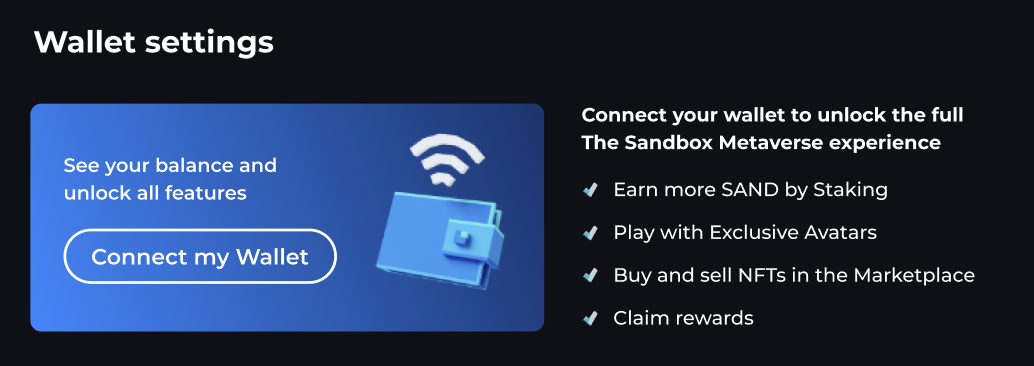
7\.  Your request is complete! The **Blockchain Settings** page now shows an option to **Connect my Wallet** so you may either connect a different wallet or connect the same one again. When you're ready, follow the prompts to connect a wallet. Visit [**Wallet: Choose, Connect** ](https://docs.sandbox.game/en/accounts/manage-wallet/choose-connect)for more information.<br>

```
<figure><img src="https://3927767952-files.gitbook.io/~/files/v0/b/gitbook-x-prod.appspot.com/o/spaces%2F61fllYo416R30LRxku4v%2Fuploads%2FWhYMOtEvLrDhsIk1o0Of%2Fimage.png?alt=media&#x26;token=b1df728b-698b-4641-b101-a0edbe8d9f56" alt=""><figcaption></figcaption></figure>
```

{% endtab %}
{% endtabs %}

## I Forgot...

{% tabs %}
{% tab title="Which Wallet I Registered With" %}

## I Forgot Which Wallet I Registered With

The wallet that you connected to your account depends on your method of registration. Methods are clearly displayed in the registration menu and on the [**Wallet: Choose, Connect** ](https://docs.sandbox.game/en/accounts/manage-wallet/choose-connect)page.

* If you registered with a social network, such as Facebook, Google *(aka Gmail)* or Twitter, then you likely have a Venly wallet. *(Note: Venly was previously known as Arkane).*
  * Link: [**https://www.venly.io/**](https://www.venly.io/).<br>
* If you registered through the MetaMask Web3 option, you likely connected a MetaMask wallet.
  * Link: [**https://metamask.io/**](https://metamask.io/) or accessed through a browser extension.<br>
* If you registered through the Coinbase option, you likely connected a Coinbase wallet.
  * Link: [**https://www.coinbase.com/wallet**](https://www.coinbase.com/wallet)<br>
* If you use the Brave browser and registered through the Web3 option, you might have connected a Brave wallet.
  * Accessed via the Brave browser.
* If you use the Opera browser and registered through the Web3 option, you might have connected an opera wallet.
  * Accessed through the Opera browser.<br>
* If you registered through WalletConnect, it's possible you could have any wallet supported by WalletConnect, such as Wombat.

{% hint style="info" %}
If you still need help identifying which wallet that you registered with, [**contact support**](https://docs.sandbox.game/en/general/helpcontact), who may be able to ask one of the developers or community managers at The Sandbox to check for you.
{% endhint %}
{% endtab %}

{% tab title="My Wallet Password or Security Key" %}

## I Forgot My Wallet Password or Security Key

The Sandbox is unable to assist you with this as your wallet is a third-party. If there is a forgotten password tool on your wallet's login page, use this.

Generally, if you forgot your wallet's password, you can still recover your wallet with the security key or security passphrase you should have been given by the wallet when you registered it - hopefully you wrote this down somewhere.

If you are still unable to access the wallet, you will need to contact the support team for the wallet service that you use.

It is your sole responsibility to remember and keep safe any passwords and security keys or phrases.

{% hint style="danger" %}
If you come across someone asking for your password or security keys, even if they claim to be Sandbox staff or staff for the wallet service you use - never, ever give them your password or security keys.
{% endhint %}
{% endtab %}
{% endtabs %}

[^1]: Transaction fees paid to network validators in the process of creating new blocks of data on the blockchain. Gas fees vary based on the amount of transaction "traffic" on a blockchain at any given time.