A comparison of blocks in Game Maker
A comparison of blocks in Game Maker
LIQUID - NO TRANSPARENCY Types: Deep water, lava, chocolate, etc. |
LIQUID - WITH TRANSPARENCY
|
| SOLID - NO TRANSPARENCY Types: Solid colours to detailed textures Uses: Ground, rocks, concrete/asphalt, walls, carpets, tiles, etc. Defaults: No shine or animation Collisions Tips: Use texturing to create shine details per block when creating it since there is no shine effect on 0 transparency blocks |
| SOLID - WITH TRANSPARENCY Types: Glass, ice, etc. Uses: Visibility to other areas, yet a physical barrier Defaults: The game engine applies a shine Collisions Tips: Default shine effect appears across all blocks of this type as players move |
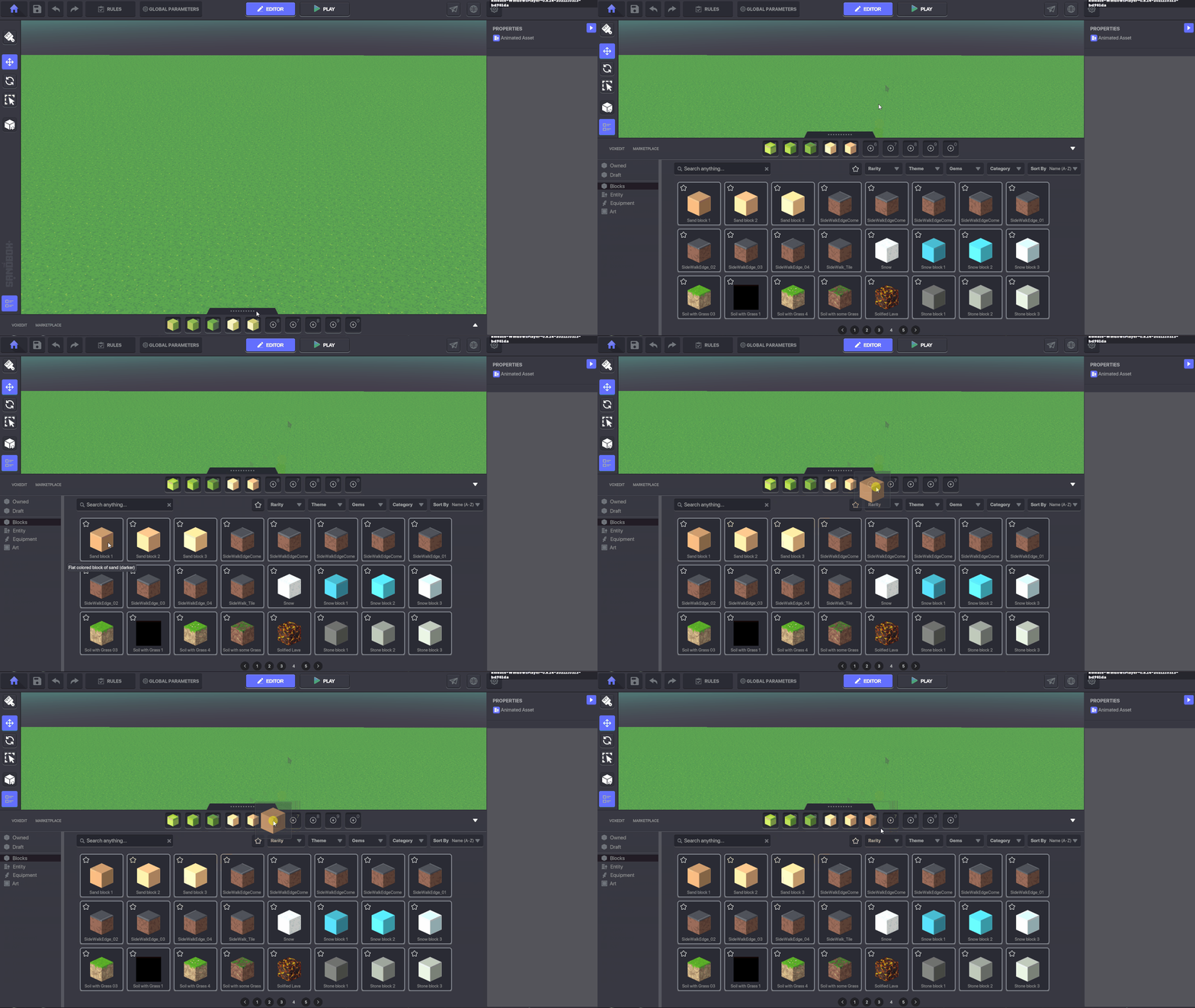
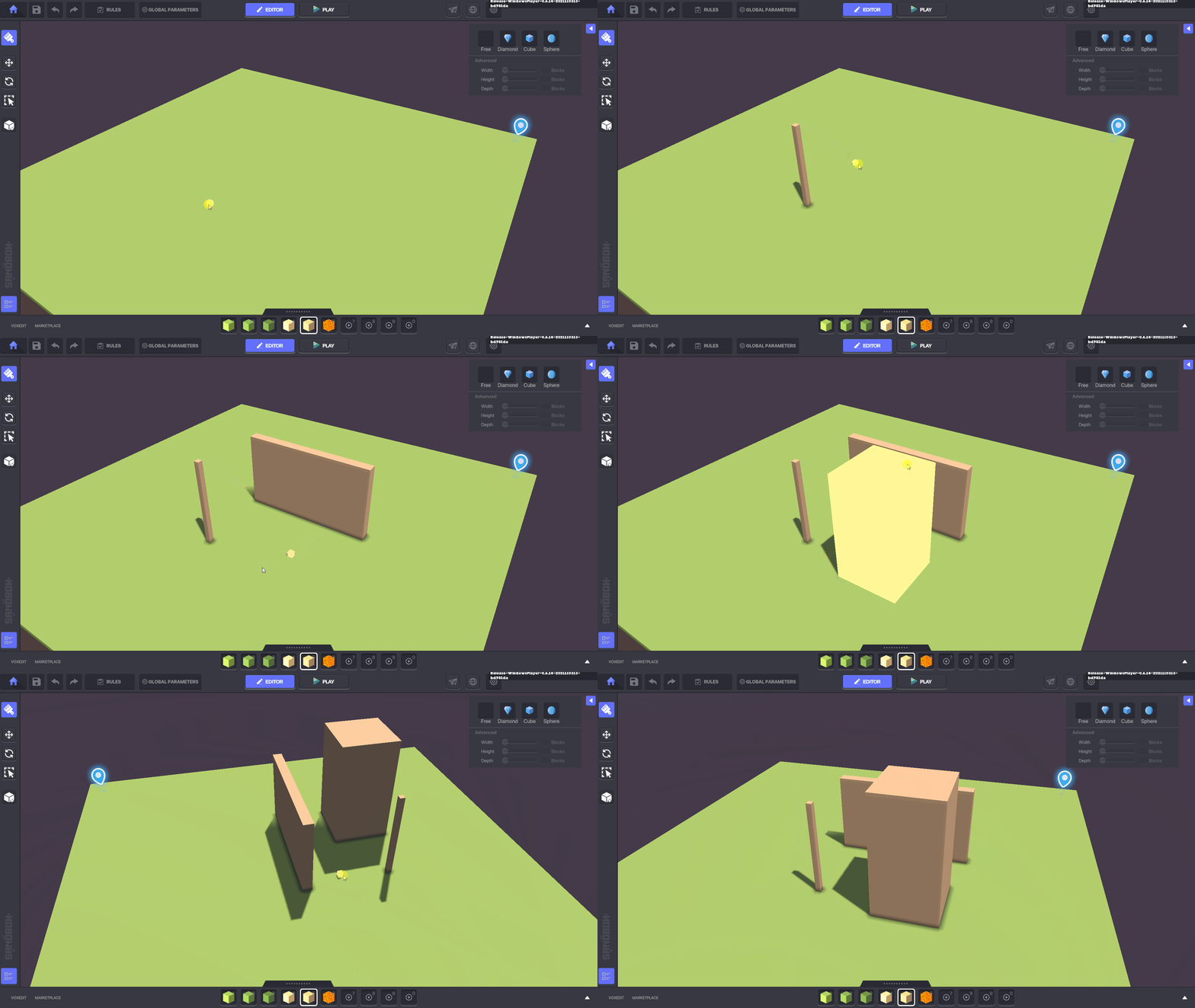
 and display additional brush options in the top right corner of the screen.
{% hint style="warning" %}
A block must be selected from the Library to perform the actions below in Brush Mode.
{% endhint %}
{% hint style="warning" %}
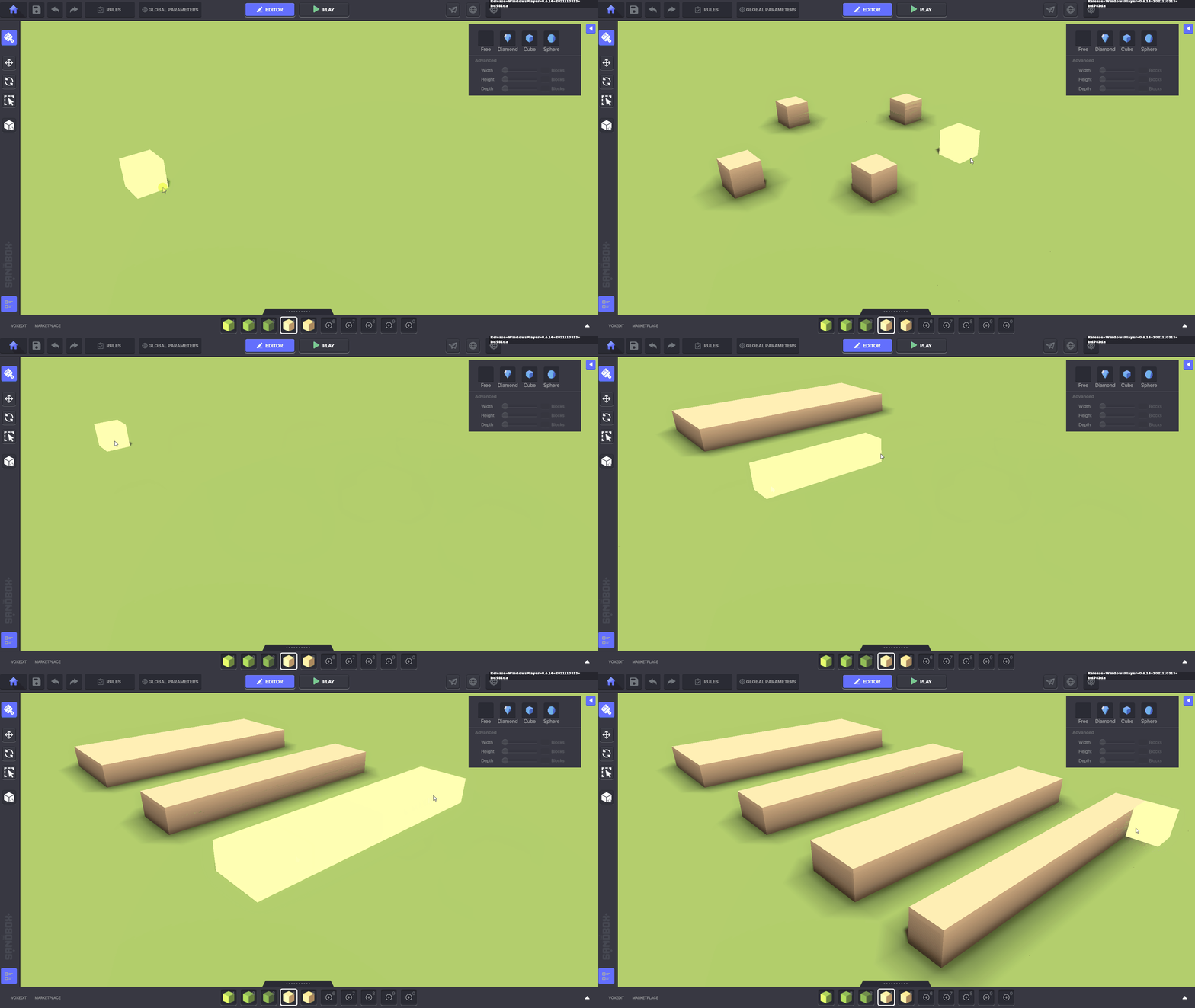
The Brush Mode works based on the location of the mouse cursor to allow you to build easily in 3 dimensions.
Move the cursor to touch the surface of an existing block that you want to add to, remove from, or replace.
{% endhint %}
{% hint style="info" %}
Undo block placement by pressing **CTRL + Z**, redo by pressing **CTRL + Y**.
{% endhint %}
{% tabs %}
{% tab title="Place" %}
and display additional brush options in the top right corner of the screen.
{% hint style="warning" %}
A block must be selected from the Library to perform the actions below in Brush Mode.
{% endhint %}
{% hint style="warning" %}
The Brush Mode works based on the location of the mouse cursor to allow you to build easily in 3 dimensions.
Move the cursor to touch the surface of an existing block that you want to add to, remove from, or replace.
{% endhint %}
{% hint style="info" %}
Undo block placement by pressing **CTRL + Z**, redo by pressing **CTRL + Y**.
{% endhint %}
{% tabs %}
{% tab title="Place" %}
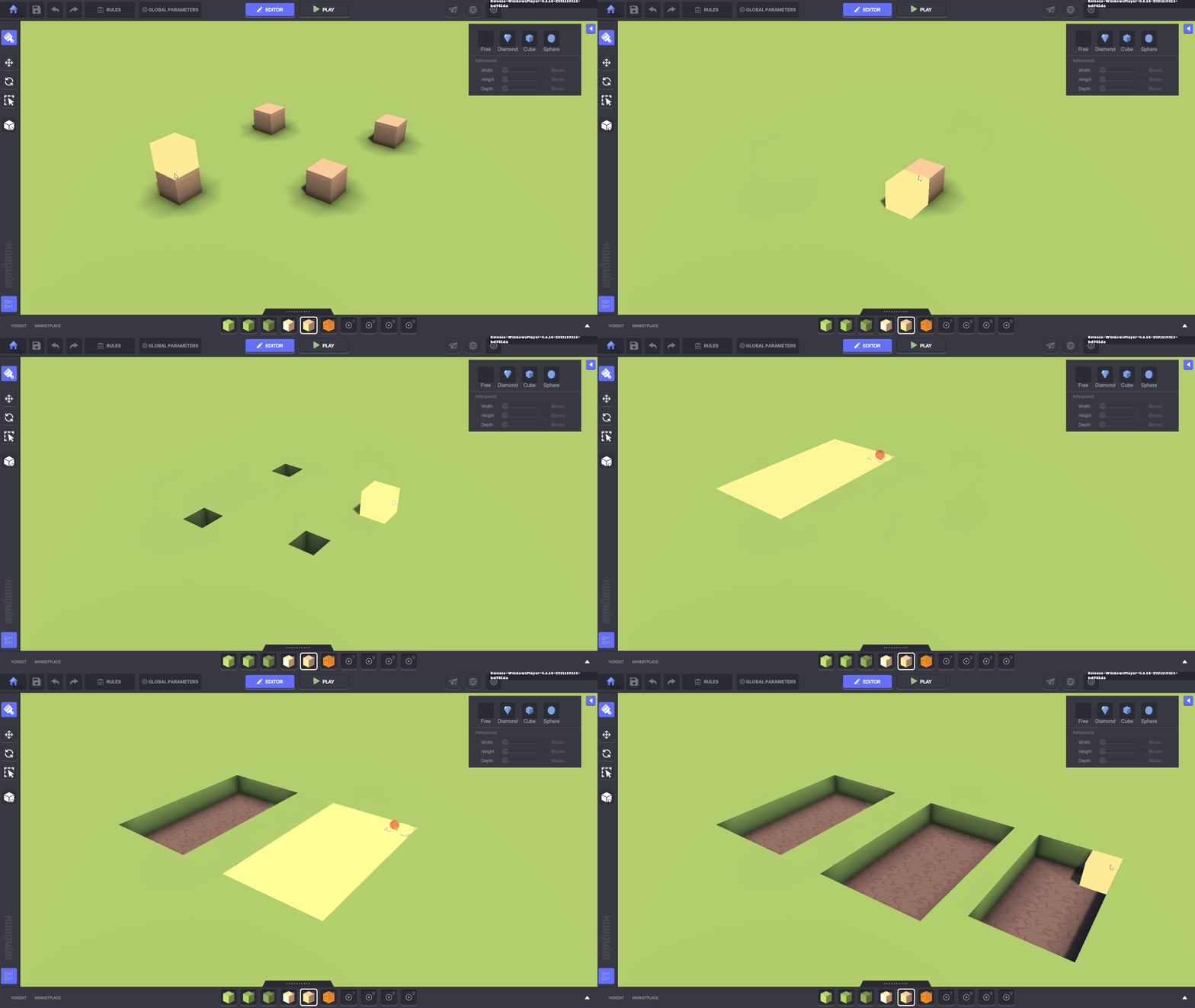
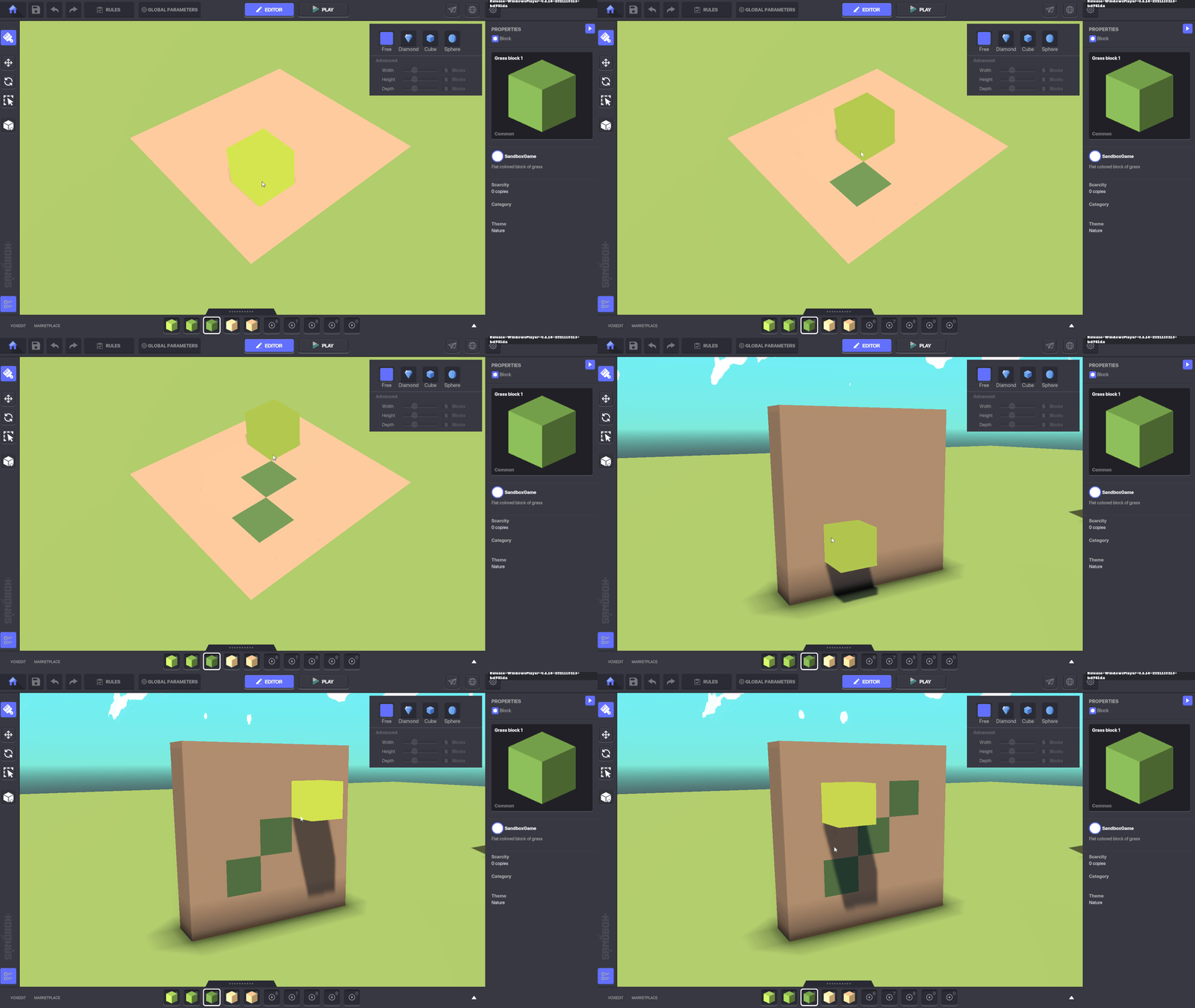
Replace in any direction
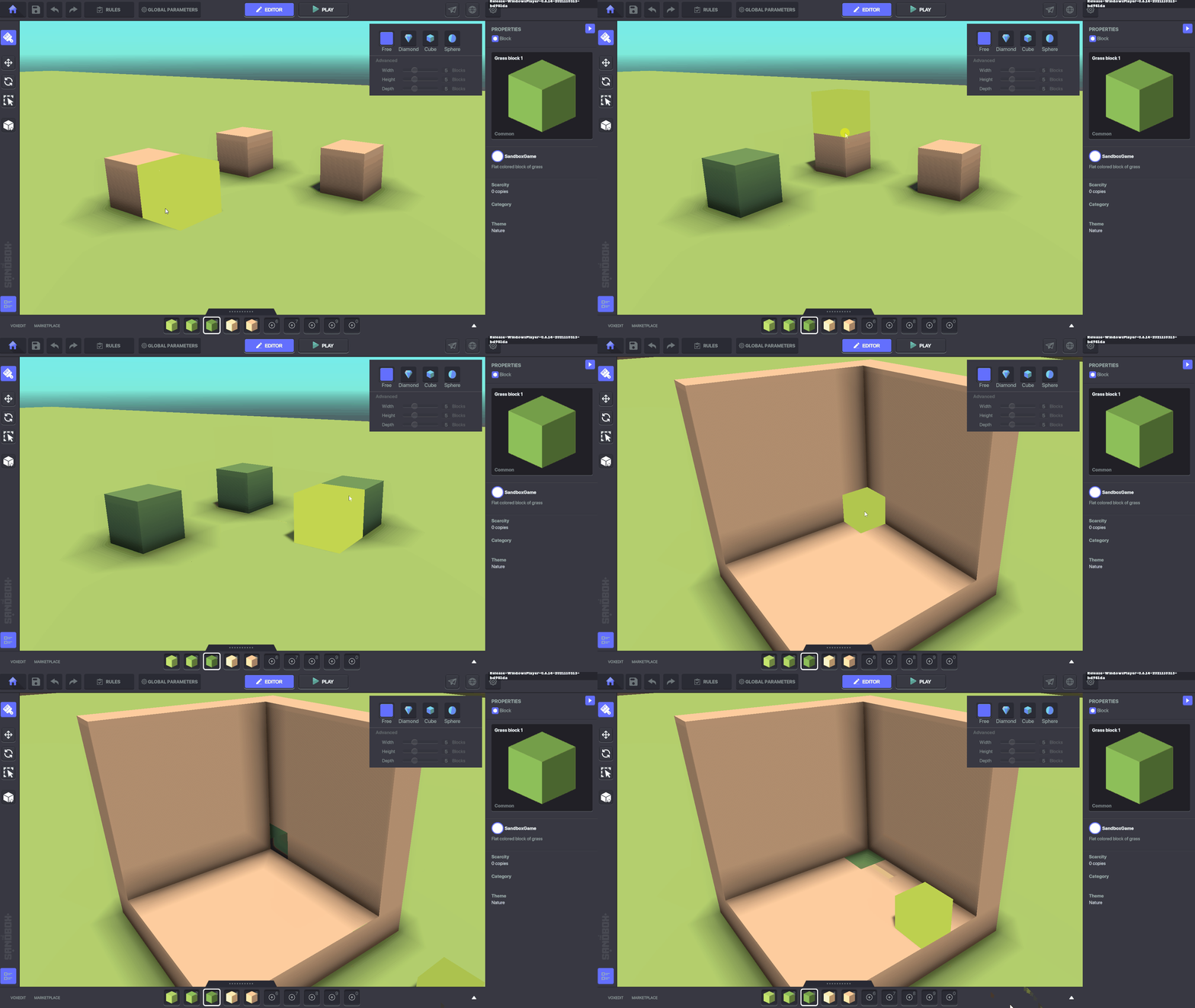
Position the mouse pointer on a face of the block to replace
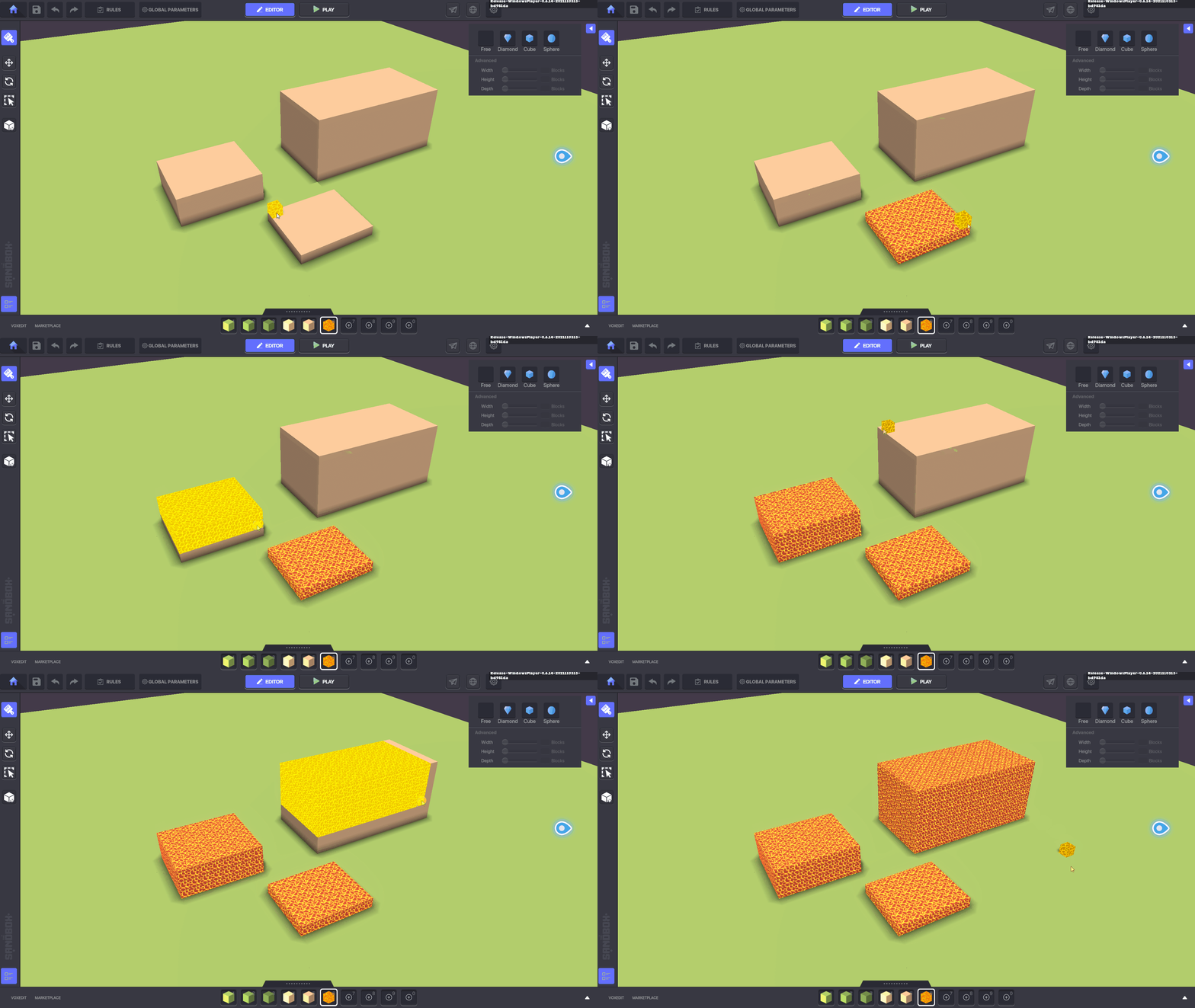
Replace a larger area of blocks easily